When should I update?
A shiny new version of Foundry VTT may have just dropped, but this doesn't necessarily mean that you should immediately update to it!
WARNING: Before updating to a new generation of Foundry VTT, you should always backup your data and check whether your favorite modules and game systems are compatible.
Only use Stable builds to run a "live" game with Foundry VTT. You should only update to a Prototype, Development or Testing build if you are a community developer or a curious power user. For more information, please see the Versioning article.
Even for a Stable build, you will likely need to wait a bit until your favorite modules and game systems update. If you use fewer modules, you'll be able to update much more quickly and easily than if you have many "must-have" modules.
Back Up Your Important Data
Before updating, the first and most important thing to remember is to always backup any important Worlds or even take a full Snapshot. Recent backups can prevent data loss and can make it easy to revert to the previous generation of Foundry VTT, should that becomes necessary.
If you use one of our official hosting partners, this feature may not be available and they may have their own backup method instead. If you use one of these services, please consult their website or Discord for more information about the best way to back up your data.
Check Module and Game System Compatibility
The Dungeons & Dragons Fifth Edition and the Pathfinder Second Edition game systems are typically already compatible with a new Stable version when it releases. Almost all other game systems and modules will take some time to release a compatible version.
Please be patient and remember that the people working on these updates are both humans with their own lives and also are typically volunteers.
A great way to keep track of update progress is to join our Discord and head to the #modules channel and to your game system's channel. Remember, just because a new version was released doesn't always mean that the release added compatibility for the new version of Foundry VTT!
The Maximum, Minimum, and Verified Compatibility Indicators
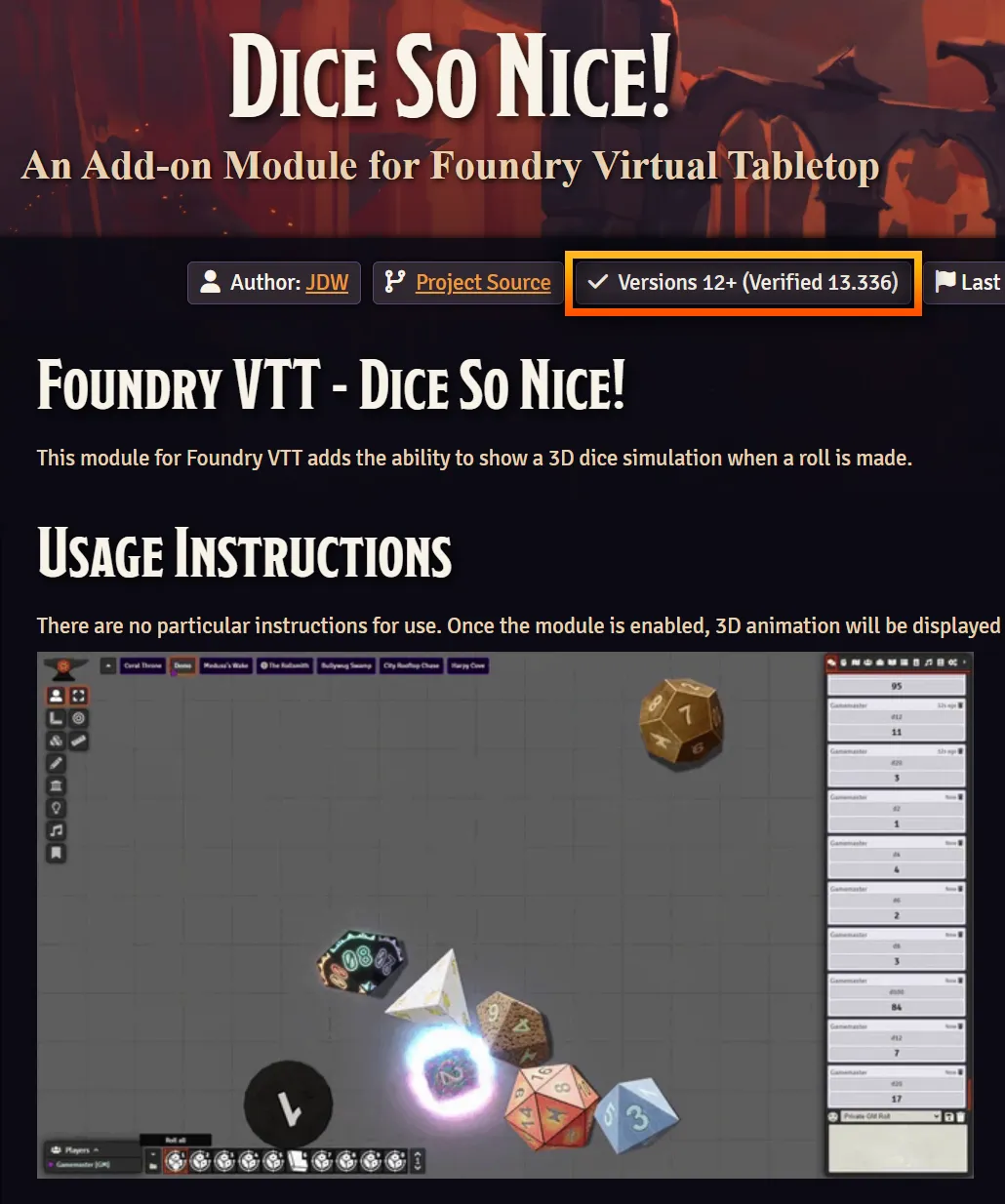
Realistically, Game Systems and Modules can't be compatible with every version of Foundry VTT. Fortunately, developers can provide compatibility information which is displayed on the Foundry VTT website and helps you to understand whether a Module or Game System is likely to work with a given version of Foundry VTT.
- Minimum
- If your Foundry VTT or Game System is older than the specified minimum version, do not expect compatibility.
- Maximum
- Similarly, your Foundry VTT or Game System may be too new for an older module, and the developer may choose to specify a maximum version. If your Foundry VTT or Game System is newer than the specified maximum version, do not expect compatibility.
- Verified
- Once a developer has specifically double-checked their creation's compatibility with a given version of Foundry VTT, they can mark it as "Verified" for that version. If you see that a Game System or Module is "Verified" for a given version of Foundry VTT, you can reasonably expect it to function normally.
If no specific version number is provided (the version is listed as "12" or "13" instead of something like 12.331 or 1336), this refers to all releases from that generation of Foundry VTT instead.
Test it Out!
Before you attempt to run a real game in a new major version of Foundry VTT, you should always test it out first, particularly if you use many modules. Ideally, this testing would happen comfortably before the session that you intend to switch to the new version.
Testing New Foundry VTT Versions using the Windows Portable Build
This build type (which is new to V13) allows Windows users to conveniently test out new versions of Foundry VTT without disrupting your primary installation:
You did double-check that your data is all safely backed up, right?
- Triple-check that you backed up your data
- Download the Windows Portable build of the new Foundry VTT version to test span
- Extract the downloaded file
- In the extracted folder, double-click the
Foundry Virtual Tabletop.exefile to launch it
WARNING: The Windows Portable build currently uses the same Foundry VTT User Data Folder as your "real" version of Foundry VTT. We strongly recommend creating and using a new Foundry VTT User Data Folder to test with instead.
Configuring a Dedicated "Test" Foundry User Data Folder
First, create a new folder somewhere (for example, D:\Foundry_VTT_User_Data_Test). You can then tell Foundry VTT to use this new test user data folder in one of two ways:
-
The Foundry VTT Setup Screen
The simplest way to ensure that you do not accidentally affect your real data while testing is to change the Foundry User Data Folder manually before testing, but it may be easy to forget this step.
-
Windows shortcut
You can create a Windows shortcut that points to your portable
"Foundry Virtual Table Top.exe". You can then add a launch parameter to the end of the shortcut's target to automatically use your new test User Data folder like.For example, your shortcut's target might be:
"Foundry Virtual Tabletop.exe" --dataPath="D:\Foundry_VTT_User_Data_Test".
Testing New Foundry VTT Versions for MacOS and Linux Users
There are effective ways to test out new Foundry VTT versions on MacOS and Linux without requiring a special build type.
WARNING: Do not use your Foundry VTT User Data folder while testing a new version of Foundry VTT.
To ensure that you do not accidentally affect your real data while testing make sure to change the Foundry User Data Folder manually if needed.
- macOS
- There is an excellent community-created and maintained guide here that can help walk macOS users through the process of setting up a Node host, which will allow you to safely test a new version..
- Linux
- Download the Node build to test a new version. If needed, you can also provide the
--dataPathparameter at launch to specify a Foundry User Data Folder to use during testing.