Updated October 18, 2026 (Version 14.369)
Table of Contents
Key Concepts
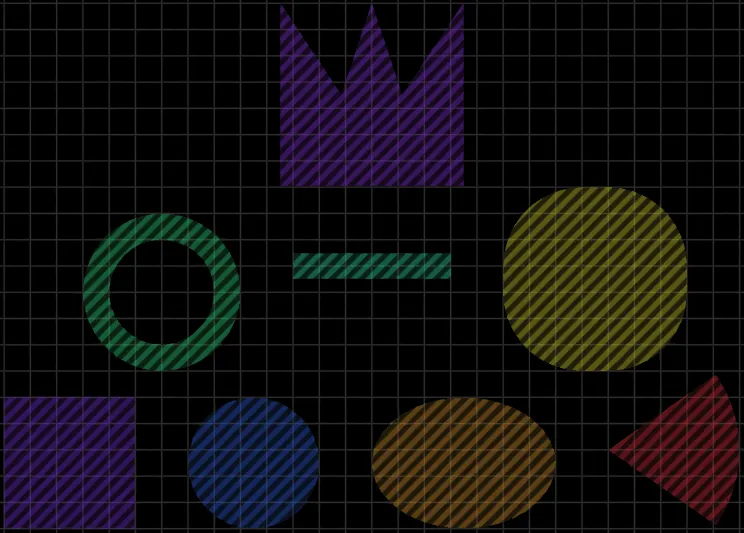
Each Scene Region is made of Shapes
By itself, a Scene Region does not physically exist in the map. To make a Scene Region useful, you must create and assign one or more geometric Shapes to it. The area that a Scene Region affects is the total area of all its Shapes combined.
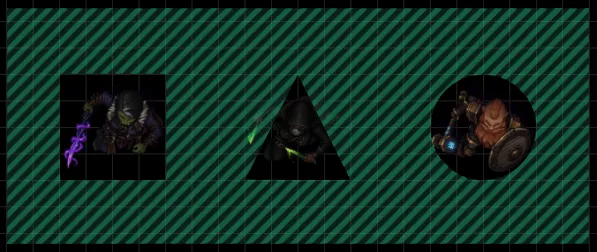
You can even define some of these Shapes as Holes so that their "negative areas" subtract from the total geometry of the Scene Region! Each of these Shapes and Holes can be manipulated individually, providing precise control over the area(s) affected the Scene Region.
Scene Regions can have any number and combination of Shapes, and the Shapes do not have to touch one another. This means that you can use a single Scene Region to capture a meteor swarm cratering the battlefield with circular impacts or a spider's den littered with sticky webs.
Behaviors power each Scene Region
Similarly, by itself, a Scene Region doesn't do anything other than highlight the parts of the grid that are covered by its Shapes. For a Scene Region to actually affect its area, you need to add one or more Behaviors to it. Many different types of Behaviors available, allowing a single Scene Region to do one or more different things within its area, including:
- Control environmental factors like darkness and weather
- Automatically teleport Tokens that enter them to a different area or Scene
- Execute custom scripts or Macros when Tokens enter or leave
- Mark out floors and roofs in a multi-level Scene
For more information, see Behaviors and Events.
"Templates" are Scene Regions
A Scene Region is the best way to represent an area of the map is affected by gameplay mechanics during combat as well, such as the blast radius of a spell or the conical area caught by a creature ability. Toggling Measured Template Mode allows you to quickly create such "template" Scene Regions that affect certain areas of a grid. For more information, see Scene Controls below.
Note: If you've used Foundry VTT prior to Version 14, Measured Templates have been folded into Scene Regions.
Scene Controls
The Scene Controls are on the left side of the UI. Clicking the Region Controls button switches to the Regions layer, where you can find a number of controls that allow you to easily create, edit and delete Regions. This Layer behaves a bit differently than the others because of Measured Template Mode and because each Scene Region can have many Shapes.

- Select Region
-
Like the Select Tools for other Layers, you can click and box-drag to select multiple Regions at once but this tool behaves a bit differently for Scene Regions because each Region can have multiple Shapes.
- Controlling any Shape also controls its Scene Region and all other Shapes in it
- Double-clicking a Shape with is tool active allows you to configure the Scene Region it belongs to
- Moving a controlled Scene Region using a mouse drag or a keyboard shortcut moves all its Shapes simultaneously
- You can use the square, circle, and triangle handles of a single Shape to move, resize, or rotate it individually as usual
- Measured Template Mode
- This mode is typically enabled for players and for GMs who are running combat encounters. It is typically disabled when GMs are configuring Scenes during game prep. For more information, see Measured Template Mode.
- Draw Rectangle , Draw Circle , Draw Ellipse , Draw Cone , Draw Ring , Draw Line , Draw Emanation , and Draw Polygon
-
Each of these buttons allows you to draw Shapes with different geometries.
- If you control exactly one Scene Region, the newly drawn Shape is added to it
- If no Scene Region is controlled, a new Region is created to house the Shape using the properties from the Palette (see below)
All Shapes that are part of the same Scene Region always have identical gameplay characteristics, so keep that in mind when deciding whether to add a new Shape to an existing Scene Region or to create a new one.
- Create Holes
- When this toggle is enabled, all Shapes are automatically created as a "Hole." A Hole Shape never adds any area to its Scene Region, and when it overlaps one or more other Shapes in the region it subtracts all overlapping area from the other Shape(s).
- Force Snap to Grid Vertices
- While this toggle is active, the top-left point of the Shape is created on the nearest grid vertex (except for Emanations, which always originate from the center of a grid space).
- Palette
- This tool opens an additional window which can be extremely helpful while creating and editing Scene Regions. For more information, please see The Palette Control for Scene Regions below.
- Clear Scene Regions
- This button erases all unlocked Scene Regions on the current level. If you're certain all important non-Template Scene Regions are locked, this can be a good way to clean up after a combat.
The Measured Template Mode toggle
The Measured Template Mode toggle is designed to quickly reconfigure the behavior of Scene Regions and their control buttons to allow you to quickly work with "template-style" Scene Regions.
Measured Template mode is enabled by default for Players and is also useful for GMs during sessions. Not only is it useful during Combat Encounters, but it also provides a simple way of marking out areas that all players can see easily.
This toggle is unique because it changes which other control buttons are available and how they behave. The Measured Template Mode toggle does not change any existing Regions, but effectively replaces the job of the Palette by automatically setting the following defaults for any new Regions:
- Matches the color to current user color
- Sets the Region to only show on the currently viewed level
- Conforms the shape to movement-blocking walls
- Sets the visibility to "Always", the highlight mode to "coverage", and display measurements to true
When this mode is enabled, the following Scene Controls are also automatically hidden because they are not generally useful when working with template-style Scene Regions: Draw Ellipse , Create Holes , Draw Polygon , and the Palette.
The Scene Region Palette
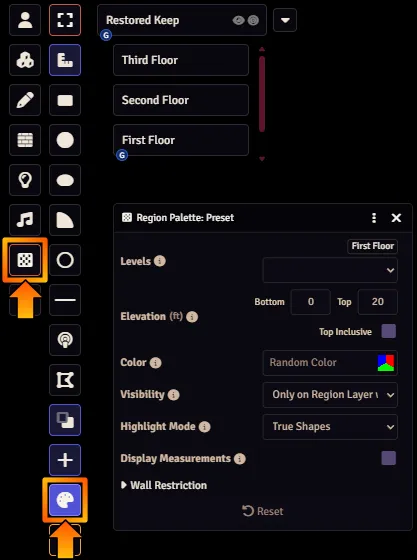
When Measured Template Mode is toggled off, you can activate the Palette tool for more fine-grained controls. The functionality of the Region Palette depends on whether you have the Select tool active or one of the Drawing tools.
- With a Drawing Tool Active
- The Palette controls the initial values of each new Scene Region you place if you have any of the drawing tools active (e.g. Draw Rectangle) and no existing Scene Region is controlled. Once you've drawn a shape the palette tool will disappear because you're now adding Shapes to the same Region. You can either return to the select tool or use the Region sidebar (covered below) to start drawing a new Region again.
- With the Select Tool Active
- The palette functions as a mass-edit tool while you have one or more selected Regions, allowing you to adjust many selected Scene Regions at once.
- Use the Apply button to apply any changes you've made in the Palette's values to all selected Scene Regions
- Use the Clone button to copy all of the currently selected Scene Region(s) properties into the Palette
- The Reset button removes any pending changes in the Palette to the default state, just as if you deselected and reselected the same Scene Regions
The Placeables Tab for Scene Regions
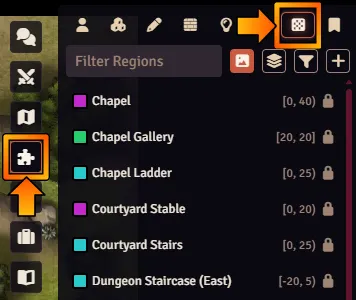
The Placeables sidebar tab has tabs for each Placeable Object type, including Regions, which is synched to the choice of layer in the Scene controls. Here, you can see all Regions in the Scene and filter by name, viewed, level, or even advanced filters like elevation and included behaviors. You can also create empty Regions here, which you then fill in with shapes.
You can click on Regions to select them, or hold shift to select multiple Regions at a time. This works well in combination with the palette tool which will allow you to perform edits to all selected Regions.
Locked Regions: The default visibility for Regions is "Only on Region Layer when unlocked", which means that on pre-produced maps like the Restored Keep almost all Regions are hidden on the canvas even while on the Region layer. You can lock and unlock Regions from this sidebar tab by right clicking a Region for the context menu; a locked Region cannot otherwise be moved and its shapes cannot be edited.
Scene Region Configuration
While on the Region layer, you can double click any visible Region on the canvas or its entry in the Placeables tab to open its sheet. Updates are only saved when you click the "Update Region" button in the footer, however the Region will preview adjustments as you edit the fields. The exception is that adding or deleting behaviors or deleting shapes will not be undone by cancelling out of the Region Config.
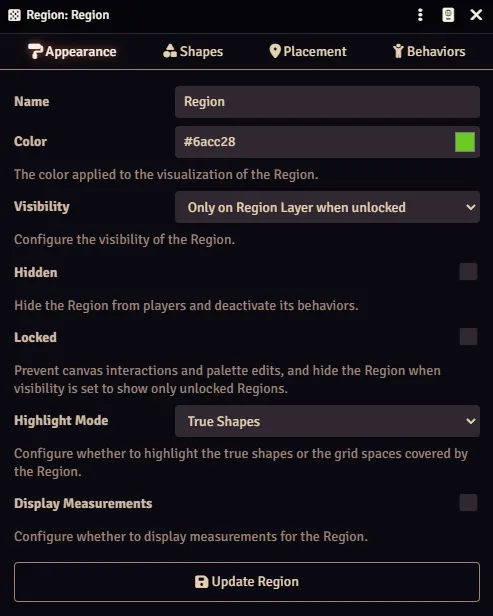
Appearance
The appearance tab has the basic information about a Region. Of particular note here is Visibility, which modifies your ability to view and potentially interact with the Region while working with other placeables. When setting up a complex map it can often be desirable to set visibility higher to help while building other layers (e.g. "Always for Gamemaster" then placing Tiles), then use the palette tool to reduce visibility after other layers are constructed.
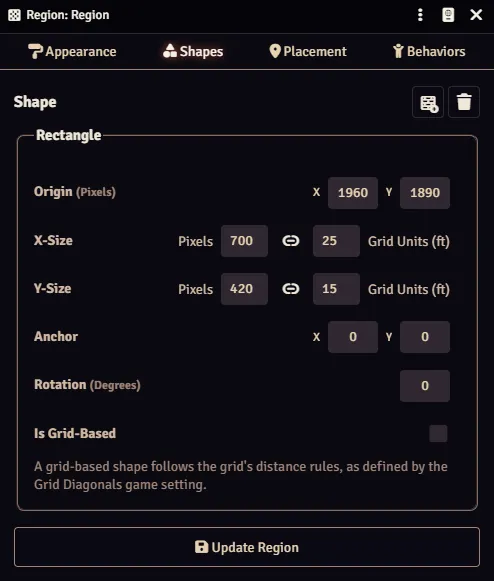
Shapes
The Shapes tab allows configuring the values of each shape. If a Region only has one shape those fields will be directly exposed in this tab; otherwise each shape must be adjusted individually. Of note here is that some shapes have an "Anchor" property, which indicates as a percentage where the control anchor is located — a value of 0,0 indicates the top left, while 0.5,0.5 is the center.
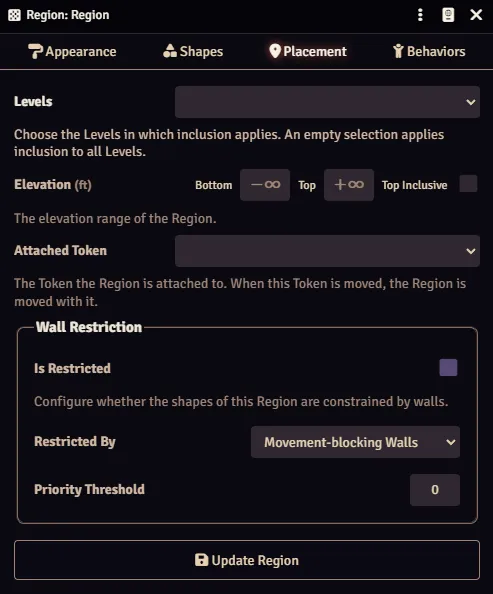
Placement
The placement tab controls levels-related properties of the Region as well as the wall interactions. All Regions have strictly vertical sides — a circle is functionally a cylinder, and never a sphere. The "Attached Token" option requires a Region to only be located in a single level that matches the token, where it will then follow based on its current relative position; a cone projected from the token will turn with the token, and if a Region is not connected to the token it will maintain that spacing.
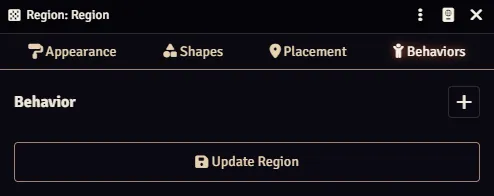
Behaviors
The behaviors tab allows you to create, toggle, edit, and delete Region behaviors. Toggling can be useful both manually as well as programmatically via the Toggle Behavior Region behavior, such as an electrified floor that is turned on after a token crosses a tripwire.
When creating or editing Behaviors, the functionality of the Behavior Configuration window depends entirely on the specific type of Behavior that you are configuring. Only the fields necessary to set up that type of Behavior are displayed, so the configuration window is unique for each one. For more information, please see Behaviors and Events below.
Behaviors and Events
Some types of Behaviors are "always on" and exert a continuous effect in their area such as the Adjust Darkness Level and Suppress Weather behaviors. Other Behavior Types are only triggered when certain conditions are met.
Such conditional Behaviors use pre-defined Events to determine when they should trigger, typically based on Tokens entering or exiting the Scene Region or the advancement of a Combat Encounter. Inside a single Region, multiple Behaviors are often present which provide different functionality when different Events occur. For example, one Behavior might trigger when a Token enters the Region, and a different one might trigger when the Token leaves it.
Behavior Types
Every Behavior type that is provided by the core Foundry VTT software is described here, but you may still encounter other types of Behaviors that do not appear in this list. Many modules and game systems add their own custom Behaviors as well, so you will need to consult their documentation for more information.
- Adjust Darkness Level
- This behavior adjusts the aesthetic darkness level within a space; besides its specific interaction with light thresholds, it does not factor into vision calculations. A large darkness Region can be one solution to allowing global illumination on the outside of a structure but maintaining the need for lighting inside.
- Apply Active Effect
- This Region applies an Active Effect to all tokens who enter a Region and remove it from any token that leaves the area. It is generally recommended you use an Active Effect compendium to define the effect being applied, although systems and modules may make use of other sources. The effect's origin will be set to the behavior, but otherwise the effect's data is used as-is.
- Change Level & Define Surface
- These two behaviors are used by multi-level maps.
- Display Scrolling Text
- This behavior simply displays scrolling text during the linked events. This can be useful as a standalone reminder or in conjunction with other behaviors to highlight the event's occurrence.
- Execute Macro & Execute Script
-
These extraordinarily powerful behaviors give full access to the Foundry VTT API for purposes not captured by the rest of the behaviors here. The two are largely identical in their access to the API; a macro can be written once and referenced by many execute macro behaviors, while the execute script behavior avoids adding a secondary reference for code that's only needed for a single behavior.
Both behaviors have the following variables available to them
scene: The Scene the behavior is included inregion: The Region the behavior is included inbehavior: The behavior being triggeredEvent: Information specific to the triggering event. This includes:name: The triggering event name, e.g.tokenExitdata.token: The triggering tokenuser: The triggering user
In addition to the above, the Macro Behavior type fills in the following variables based on the event data
speaker: Speaker data (for Chat Messages, if relevant)actor: The triggering Actor, if relevanttoken: The triggering Token, if relevant
One other important difference between the two is the "Everyone" toggle on the Execute Macro behavior — Execute Script always runs for every connected user, which you can mitigate with the following code to only run the script from a single GM user.
For content creators, one pattern that is strongly recommended with both of these behaviors is wrapping your code in functions that are called by the macro or script behavior; this ensures that if you later need to update the functionality users don't need to re-import the Scene, only update the module.
- Modify Movement Cost
- This behavior allows you to increase or decrease the cost of any movement mode. The list of movement modes will vary by system, and systems can correlate movement modes so say crawling is always a multiple of walking.
- Pause Game
- This simple behavior pauses the game, allowing the GM to catch up with player movement and process game events. The "Once" checkbox is especially helpful if the game event is the onset of combat, so the rest of the party doesn't keep pausing the game when they rush in to save the rogue who delved too deep and too greedily.
- Suppress Weather
- While there's not much to configure here, the Suppress Weather behavior helps split indoor/outdoor maps experience cinematic weather effects without getting the interior wet.
- Teleport Token
- This behavior allows connecting disparate Regions, which may not even be on the same Scene, together. It can be used for making Scene transitions for players more accessible as well as complex puzzle dungeons. If you are using teleportation behaviors in Scenes where combat encounters occur it is recommended you keep those combat encounters unlinked from the Scene.
- Toggle Behavior
- This "meta" Behavior turns other Behaviors on or off, enabling effects like a pressure plate that cause something to happen elsewhere. Those other Behaviors may or may not be included in the same Scene Region as this one.
Available Events
If a type of Behavior requires you to select an Event, there are a number of options available by default.
- Region Boundary Changed
- This Event occurs if the Scene Region's geometry changed in any way, such as by adding a Shape, removing it, or changing whether that Shape is a Hole. It also fires if the order of the Shapes are changed, but it does not fire if the entire Region is deleted.
- Behavior Status Changed
- Occurs if the Behavior that is subscribed to this Event is enabled or disabled. It does not occur if other Behaviors in the same Region (or different Regions) are enabled or disabled.
- Token Enters
- This Event fires if a Token enters the Region by any method, including the token being created there as a result of a Copy or drag-and-drop operation. It does not fire if the Token is already in the region when the Scene is loaded.
- Region Boundary Changed
- This event occurs when the shapes contained within the Region, or the bottom/top elevation of the Region, are changed.
- Behavior Activated
- This event occurs when the Region Behavior becomes active, i.e. is enabled or created without being disabled. This event is triggered only for the Region Behavior that subscribes to this event.
- Behavior Deactivated
- The inverse of Behavior Activated, this event is triggered when the Region Behavior becomes inactive, i.e. is disabled or deleted without being disabled. This event is triggered only for the Region Behavior that subscribes to this event.
- Behavior Viewed
- This event occurs when the Region Behavior is being viewed or the Scene containing its Region becomes active. This event trigger is more likely to be used by developers or content creators for the purposes of handling special animations and effects on the canvas, to activate those effects only when that portion of the scene is being viewed.
- Behavior Unviewed
- This event occurs when the Region becomes inactive or the Scene of its Region is no longer being viewed. This event trigger is more likely to be used by developers or content creators for the purposes of handling special animations and effects on the canvas, to deactivate those effects once that portion of the scene is no longer being viewed.
- Token Enters
- This event occurs whenever a token enters a region, whether it is created in the region, moves into it by way of drag or measured movement, the boundary of the region changes to encompass the token, or the region behavior is activated while tokens are within the shape.
- Token Exits
- This event occurs if a Token leaves the Region by any method, including the token being deleted, moving out of the region by way of a drag or measured movement, the boundary of the region changes so it no longer encompasses the token, or the region behavior becomes inactive while tokens are within the shape.
- Token Moves In
- This event occurs when a Token begins a movement that has a destination inside a Region and the Token was not inside that Region's boundaries before the movement began.
- Token Moves Out
- This event occurs when a Token begins a movement that has a destination outside a Region and the Token was inside that Region's boundaries before the movement began.
- Token Moves Within
- This event occurs when a Token begins a movement that has a destination within the same Region shape, but not when entering or exiting the Region.
- Token Animates In
- This event occurs if a token's movement animation would bring it into the shape of a Scene Region, but not if the token enters by other means such as creation or the changing of a region boundary. This event will only occur if the Region is being viewed while it occurs.
- Token Animates Out
- This event occurs is triggered when a token's movement animation would cause it to exit the shape of a Scene Region, but not if the token leaves by other means such as deletion or the changing of a region boundary. This event will only occur if the Region is being viewed while it occurs.
- Token Starts Turn
- This event occurs when a Token inside this region is part of a Combat Encounter and a Combat Turn begins.
- Token Ends Turn
- This event occurs when a Token inside this region is part of a Combat Encounter and a Combat Turn ends.
- Token Starts Round
- This event occurs when a Token inside this region is part of a Combat Encounter and a Combat Turn begins.
- Token Ends Round
- This event occurs when a Token inside this region is part of a Combat Encounter and a Combat Round ends.
Note: Modules or Game Systems may provide additional Events. Please consult their documentation for more information about them.
API References
To interact with Scene Regions and their behaviors programmatically, consider using the following API concepts: