


Open several journals in one window, navigate the index, and choose which panels to display. The GM can also publish selected pages to a campaign website that stays available when Foundry is closed.
Journal library and covers
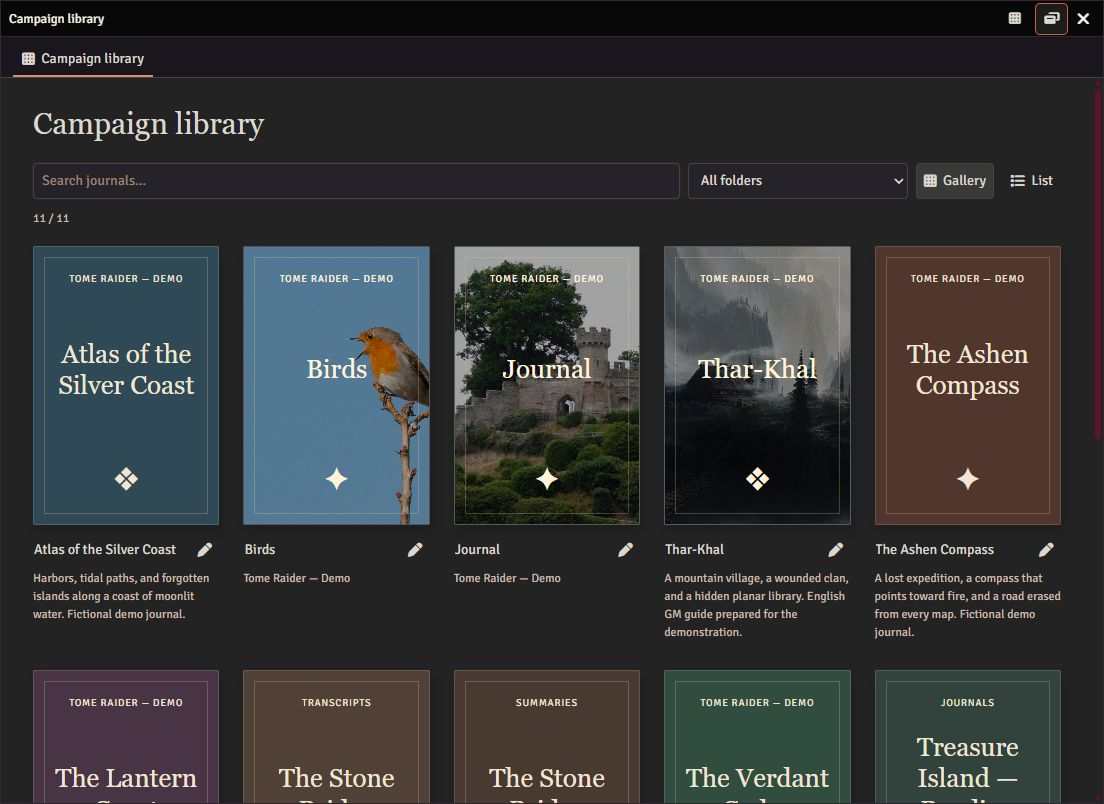
Organize journals in gallery or list view, search titles or descriptions, and filter by folder.
- Customize covers with an image, title, description, color, and symbol without changing the original content. The library respects access permissions.
Tabs and panels
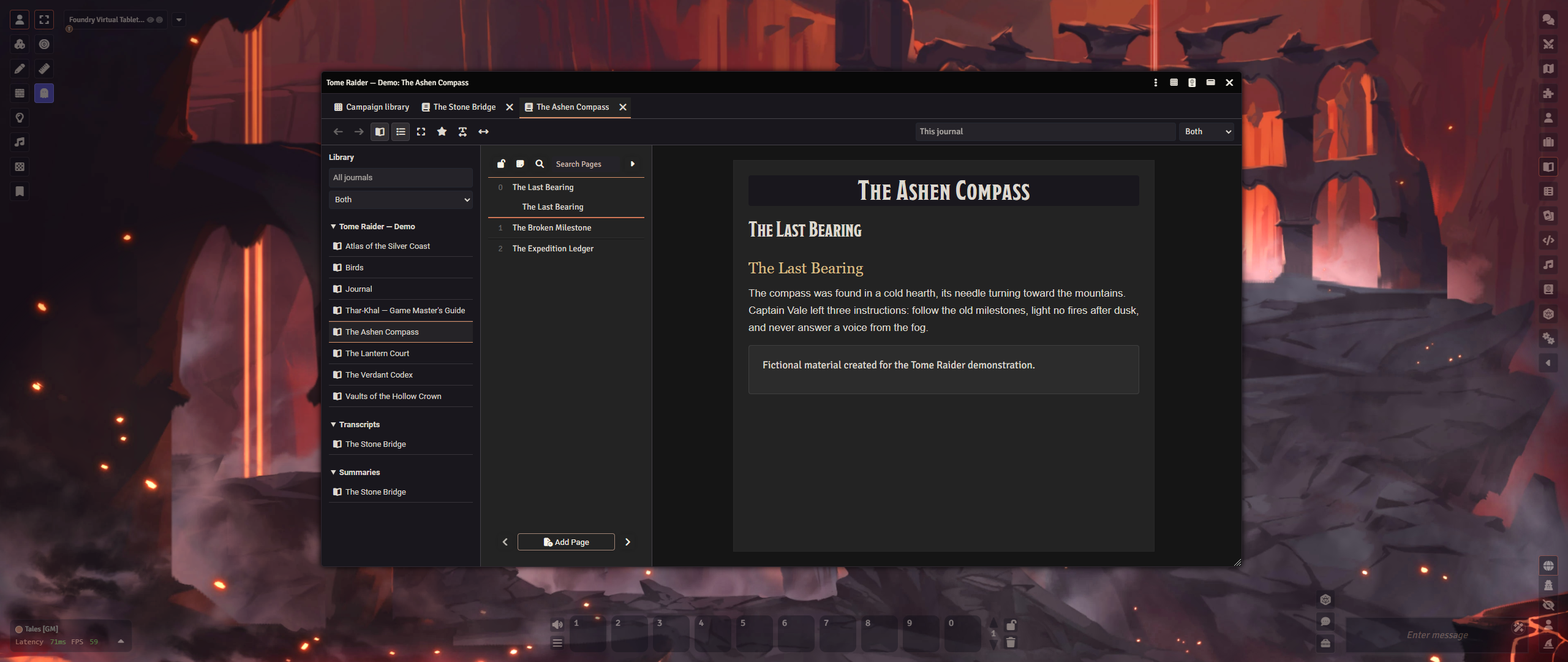
Open several journals in tabs within one window and navigate the page and heading index.
- Show or hide panels. In the maximized view, resize them by dragging or using the keyboard.
Full-screen mode
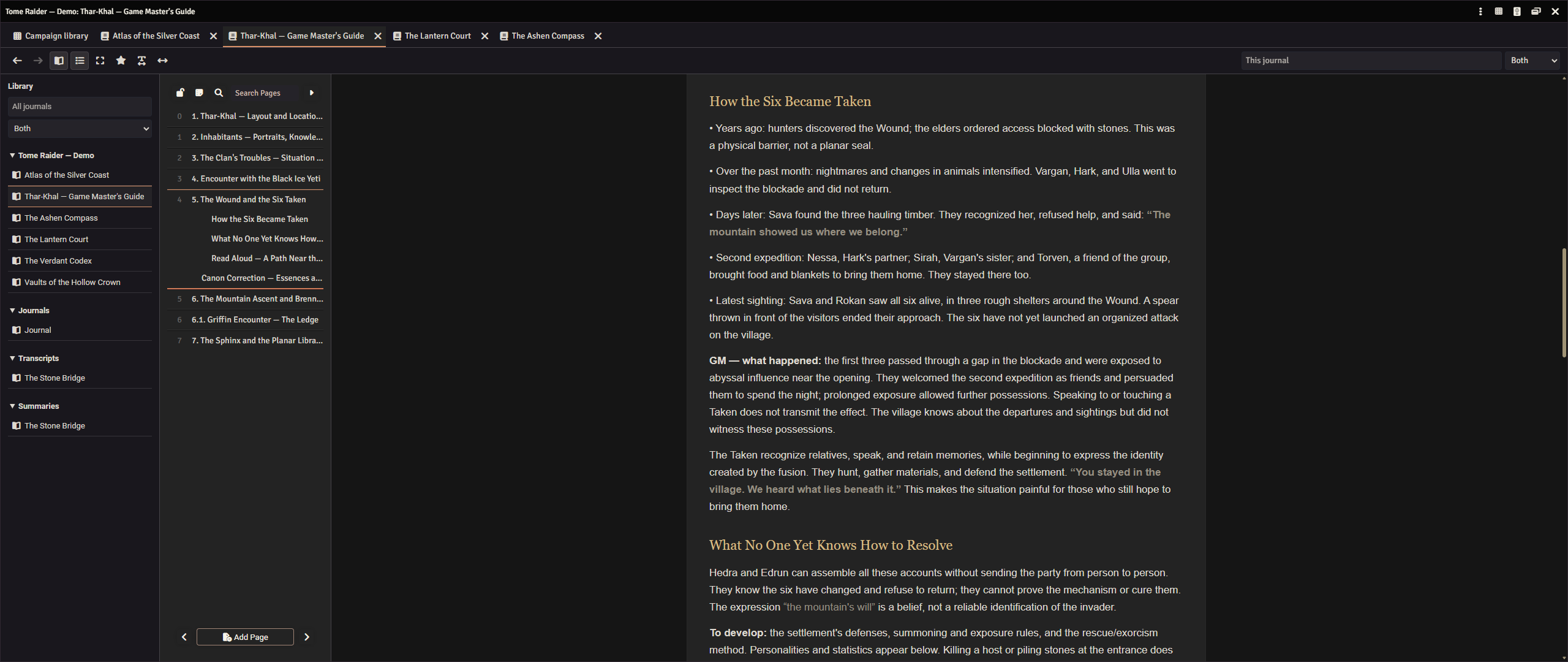
Maximize the window to fill the available Foundry area and restore it with the same button.
- The library, index, and navigation controls remain available.
Reading mode and text settings
Hide panels to focus on reading. Adjust the column width, font size, and line spacing.
- Expand individual pages with free width without editing HTML. Reading settings are personal preferences.
Search journals
Search titles and content in the open journal or all accessible journals, with snippets and highlighted matches.
- Search ignores accents and respects permissions. It covers text pages, not text in PDFs, images, or specialized fields.
Back, forward, and bookmarks
Use back and forward to revisit pages and bookmark favorites for quick access.
- Reading resumes in the same browser.
Create a campaign website
With Patreon connected and your pages selected, publish and open your website in two clicks. Tome Raider builds the library and reading pages from your journals.
- Share the address with your players. The website stays available when Foundry is closed. This feature is in beta.
Link a Patreon account with an active Founder benefit to publish and update your campaign site.
Read journals in your browser
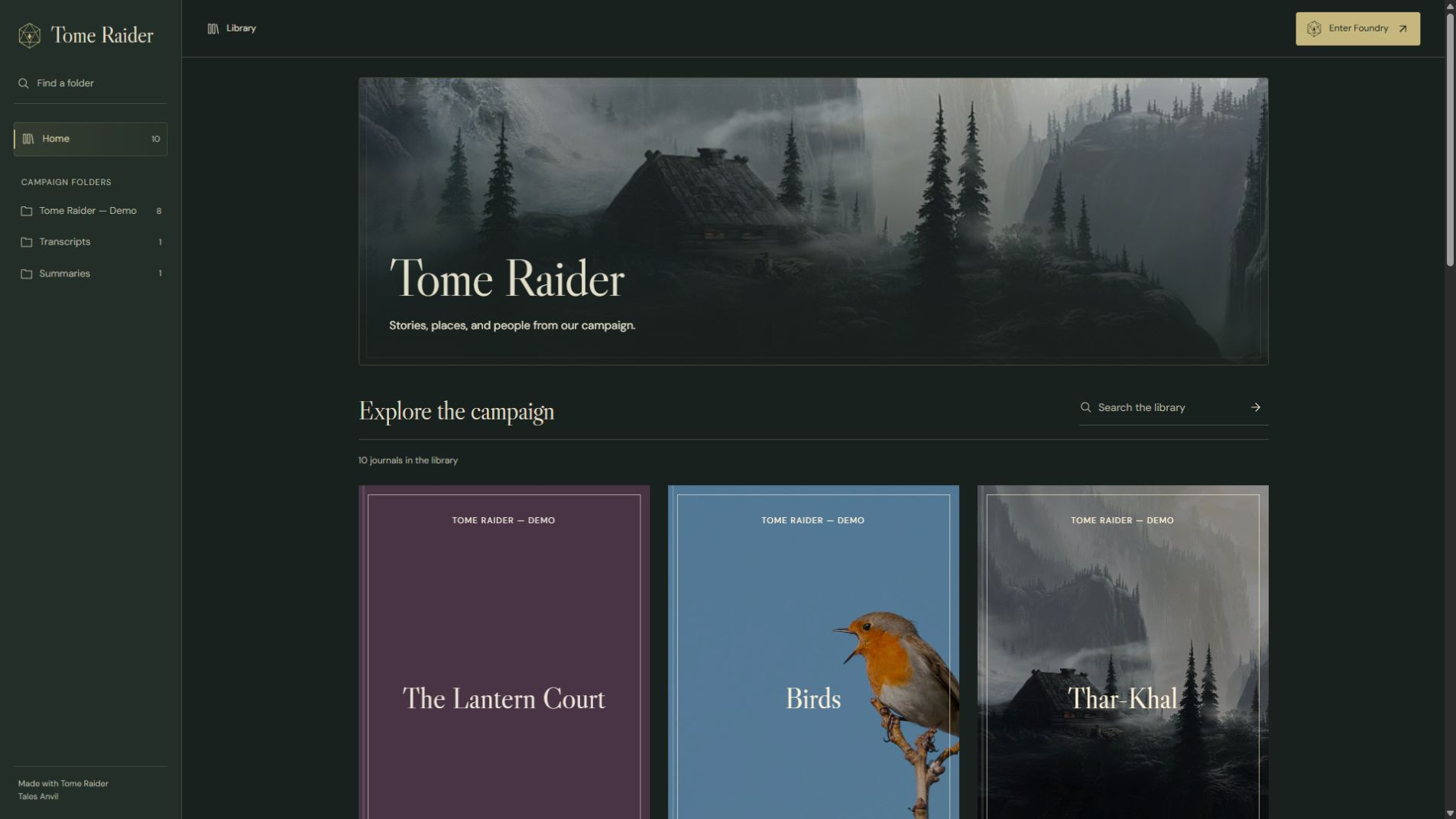
Read text and images in your browser, including on mobile. Navigate folders, the page index, and previous/next controls.
- Enlarge images, search journals, and resume reading. The “Enter Foundry” shortcut opens the game when its address is configured.
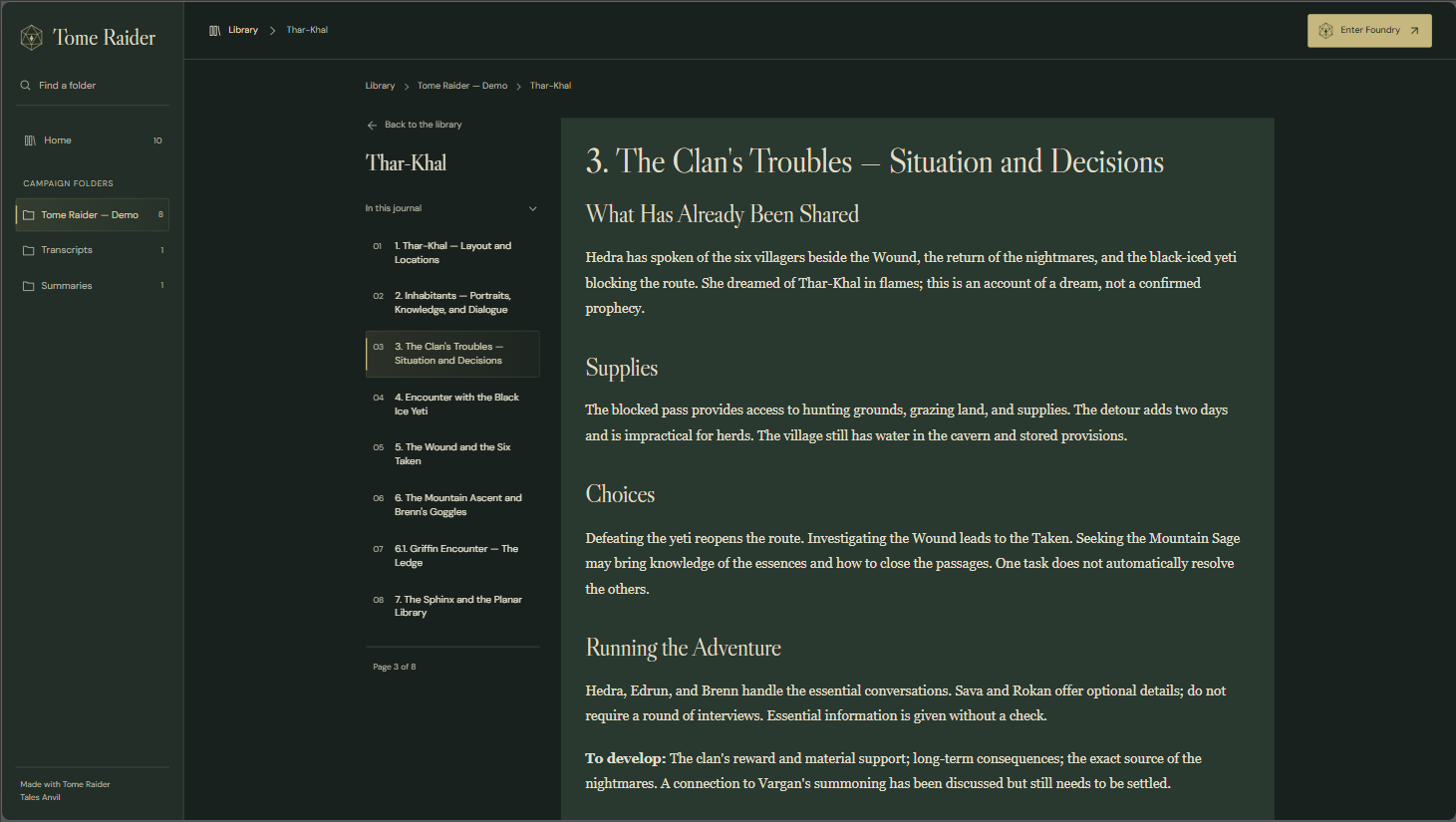
Update the website from Foundry
Edits sync while the responsible GM is connected. When Foundry is closed, the website keeps the last published version.
- Use “Update site” to apply changes to selections, appearance, or replaced files. Unpublishing preserves your journals in Foundry.
Public or password-protected website
Choose public or password-protected access. Visitors do not need Patreon; protected sites disable indexing.
- Founder includes up to 3 websites and 1 GB shared storage during the beta. Audio and video use external links.
- When the benefit ends: 7 days of grace, then suspension and 30 days of retention. No backups or exports at this stage.
Configure the website in Foundry
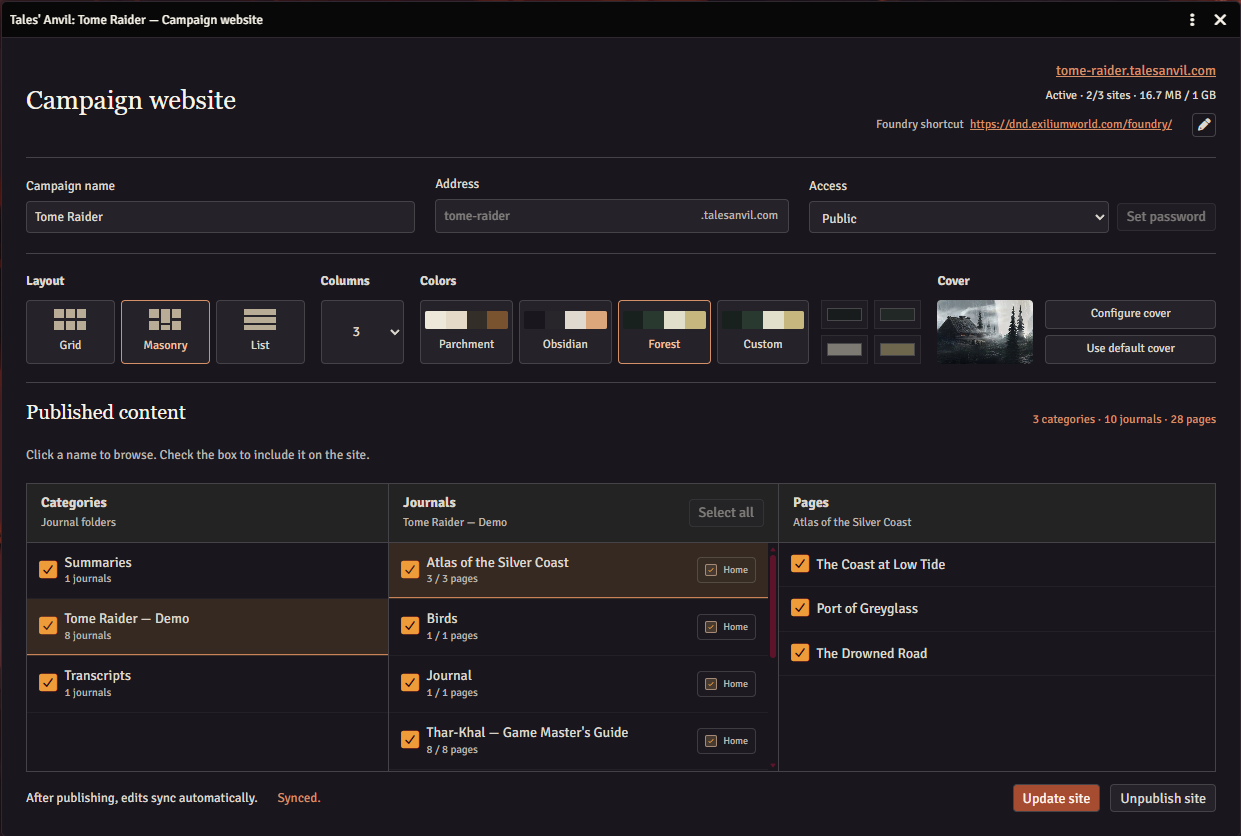
Select folders, journals, and pages. Choose a cover, colors, grid, masonry, or list, and check “Home” to set the journals featured on the home page.
- Excluded pages and secret blocks are left out.
- Publishing preserves the original journals. Macros and rolls do not run on the website.
- Automatically publish new pages (optional). Automatically includes new text and image pages from journals already selected for the site. Previously unchecked pages stay private. Runs while the publishing GM is connected.
Validated on Foundry VTT 14.368 with D&D 5e 5.3.3. Other versions and systems have not yet been validated.