This package contains art, text, or software code produced using generative AI.
AI tools were utilized strictly as a productivity aid. The development, coding, and design are fully driven and executed by the human author.
All sound effects, art assets, and visual materials are NOT AI-generated.
AI was used only for coding assistance and logic optimization.
Lock Picking — Immersive Lock Picking Minigames
Turn every door and every chest into a thrilling challenge!
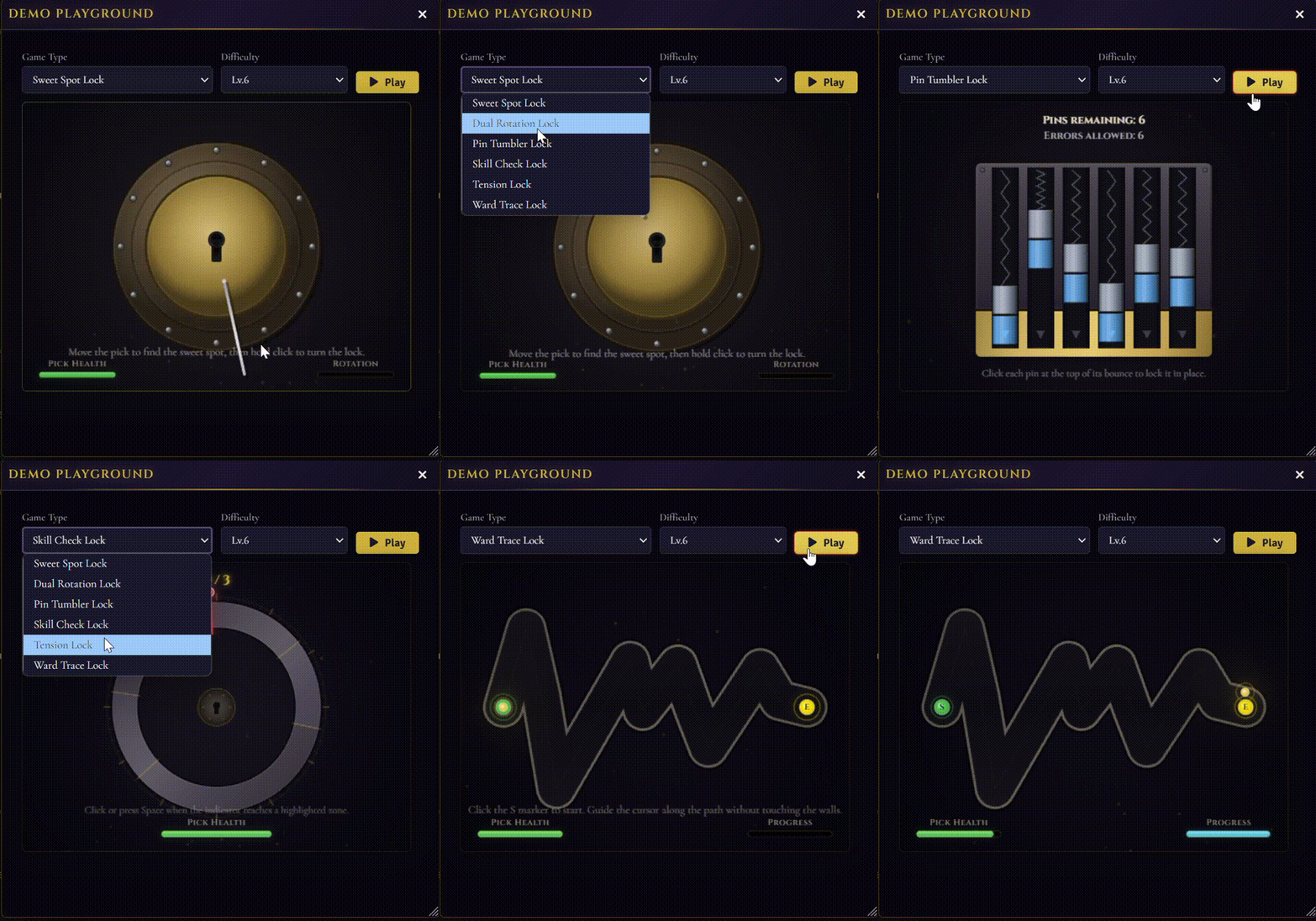
"Lock Picking" brings 6 unique minigames to Foundry VTT V13. Whether your players are nimble rogues, key-hoarding nobles, or clumsy warriors—this module adds a truly unique and interactive experience to your tabletop adventures!

Features
-
6 Lock-Picking Minigames
-
Sweet Spot: Move the pick to find the right position, then hold to rotate the cylinder.
-
Double Rotation: Find the sweet spot, hold the spacebar to rotate, and keep the cursor aligned.
-
Tumbler Spin: Click with precision exactly when each tumbler reaches its peak.
-
Skill Check: Click the highlighted area as the indicator sweeps across.
-
Tension: Click numbered targets while keeping the tension bar within the green zone.
-
Path Tracing: Guide the cursor along the keyhole path without touching the walls.
-
-
Fully Customizable: Each lock can have its own dedicated minigame type or follow global default settings.
-
15 Difficulty Tiers: From simple padlocks to legendary ancient mechanisms—lock picking never feels repetitive.
-
Seamless Skill Integration: Character lock-picking skills directly influence the minigame's difficulty. Features automatic attribute path detection, making it compatible with all game systems (System Agnostic).
-
Comprehensive Key System: Assign specific keys to locks and set their durability. If a key is found in the inventory, the system will automatically use it to unlock.
-
Advanced Tool System: Configure up to 6 different lock-picking tools to reduce difficulty. Each tool's effectiveness varies depending on the minigame type.
-
Item Piles Integration: Containers can be locked too! Features independent "Unlockable" and "Locked" toggles with persistent unlock states.
-
Complete GM Control: Manage interaction distance, attempt limits, and failure cooldowns. Includes Door HUD shortcuts, Token context menus, and a dedicated Demo Playground to test everything out.

Usage Guide
Basic Setup
-
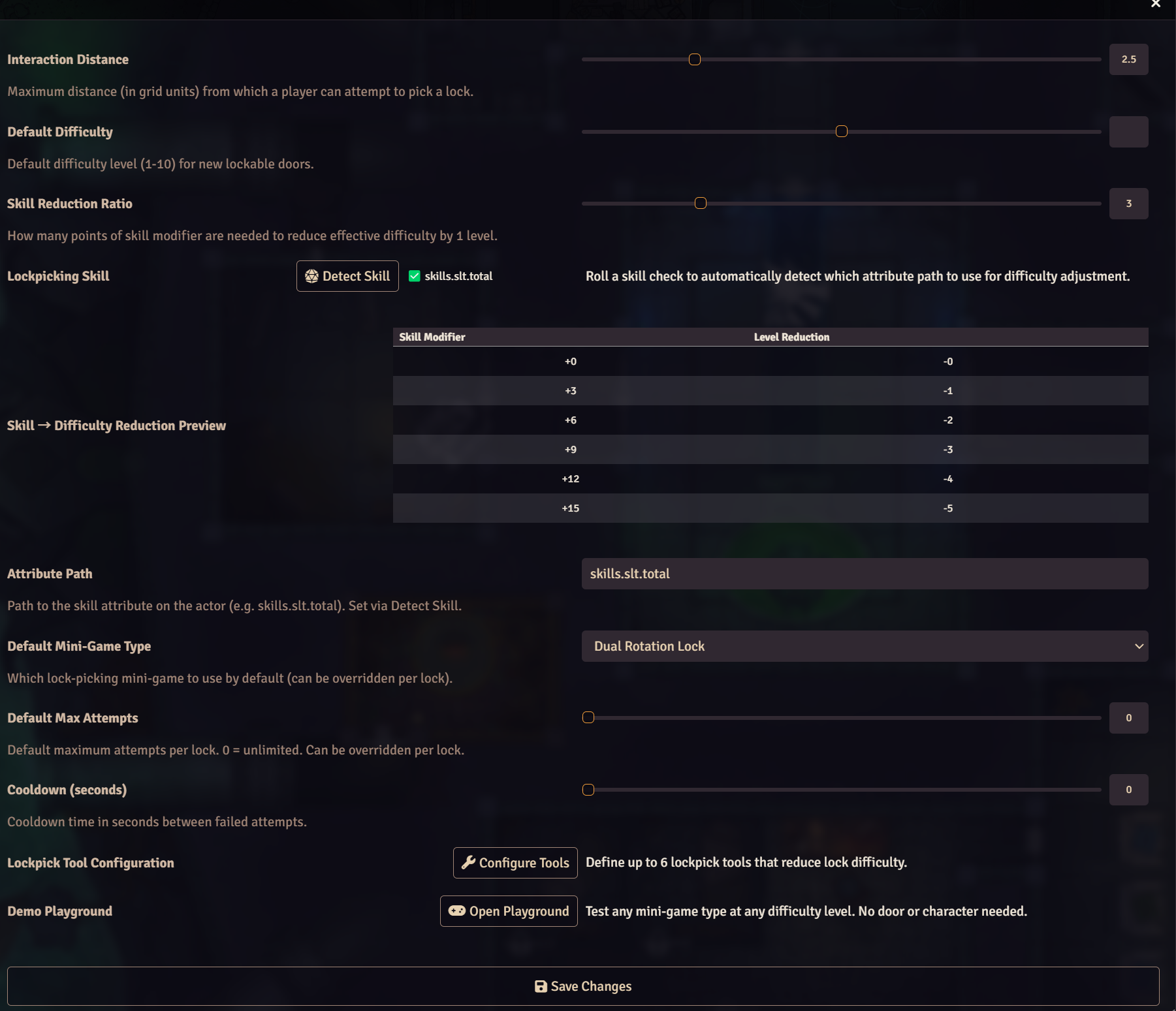
Go to Module Settings > Lock Picking.
-
Adjust the Interaction Distance, Default Difficulty, Minigame Type, Attempt Limits, and Cooldown.
-
Click "Detect Skill" to bind your system's lock-picking attribute.
-
Once bound, character skill levels will automatically reduce the minigame difficulty.
Locking Doors
-
Right-click a door.
-
Click the Lock Icon.
-
Check "Set as Lockpickable".
-
Set the Difficulty and Minigame Type, then click Save.
Locking Item Piles Containers
-
Right-click a container Token.
-
Select "Configure Container Lock".
-
Check "Set as Lockpickable" + "Currently Locked".
-
Set the Difficulty and click Save.
-
After a successful pick, "Currently Locked" will automatically uncheck.
-
The GM can manually re-lock the container at any time.
Configuring Keys
-
Drag an item into the "Associated Key" slot within the lock configuration panel.
-
Set the key's Durability (number of uses).
-
Locks will automatically open if the corresponding key is in the player's inventory.
Configuring Tools
-
In the settings, click "Configure Tools".
-
Drag in items to be used as tools.
-
Define the Difficulty Reduction and the specific minigames each tool applies to.
Player Workflow
-
Approach a locked door or container.
-
Double-click the door or single-click the container.
-
If you have the Key, it unlocks automatically.
-
If not, a Minigame will launch.
-
Successfully complete the minigame to gain access!