Global Auto Level Change (GALC)
This modules handles automatically changing a token's level based on its elevation. It includes options for grouping and excluding specific levels from the automatic changes.

GALC also includes additional options for enhancing use of Foundry levels, namely:
- viewing token elevation as an absolute value instead of a value relative to level,
- automatic preloading of assets from adjacent levels, and
- level navigation tweaks, including the option to provide a full navigation to players.
All of these options can be turned off, turned on, and tailored on a per-scene and per-level basis via a variety of settings:
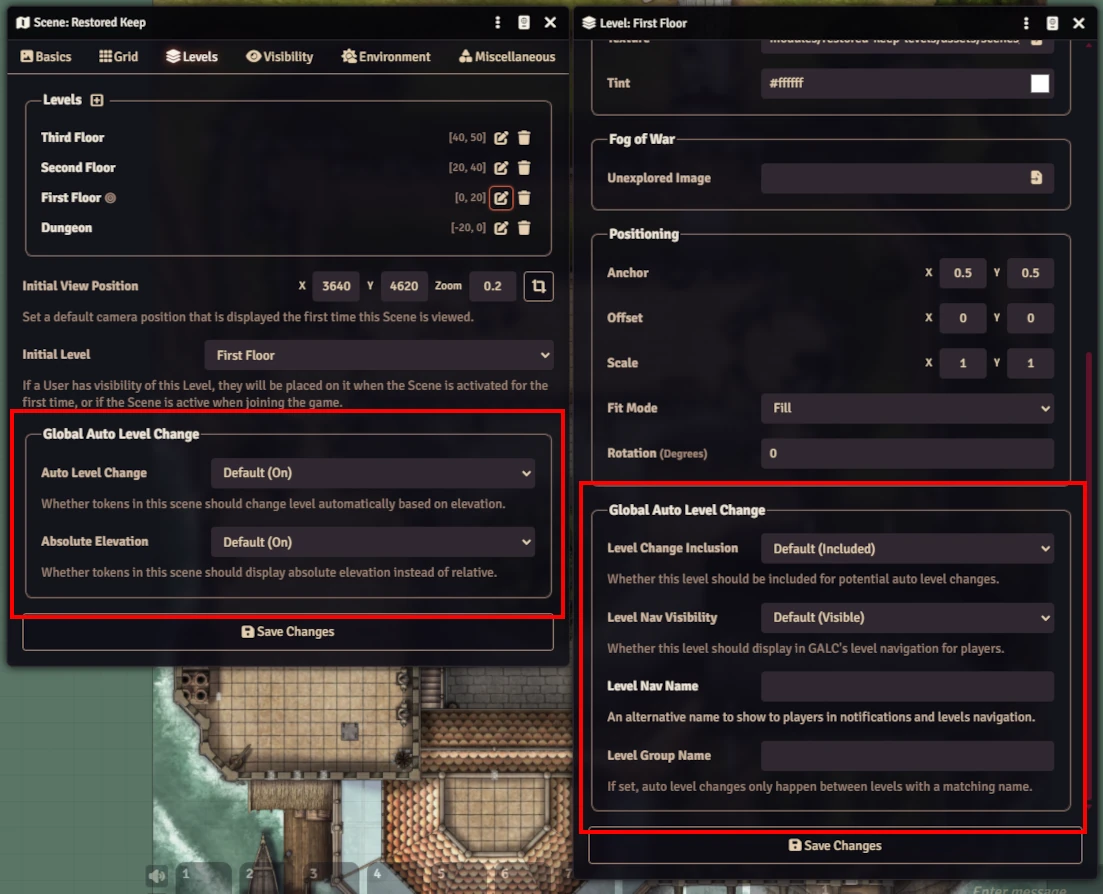
Scene Settings
-
Auto Level Change: This determines whether GALC will attempt to change a token's level automatically based on elevation for this scene. Options are Default (see Game Settings), On, and Off.
-
Absolute Elevation: This determines whether GALC will display token elevations as absolute values instead of relative values based on a token's current level. Options are Default (see Game Settings), On, and Off.
Level Settings
-
Level Change Inclusion: This determines whether GALC will ever consider this level as an option for automatic level changes. Options are Default (see Game Settings), Included, and Excluded.
-
Level Nav Visibility: If you're using GALC's levels navigation for players instead of core (see Game Settings), this determines whether or not this level will be visible to players in the navigation if that player doesn't control a token on this level. Options are Default (see Game Settings), Visible, and Hidden.
-
Level Nav Name: Similar to a Scene's Navigation Name. If text is input here, GALC will use it in place of the level's "true" name for notifications and the module's levels navigation.
-
Level Group Name: If a group name is provided, GALC will only consider other levels with the same group name when considering automatic level changes based on elevation. This is useful for correctly automating level changes on maps that might have multiple versions or themes (Material vs. Ethereal, Future vs. Present vs. Past, etc.)
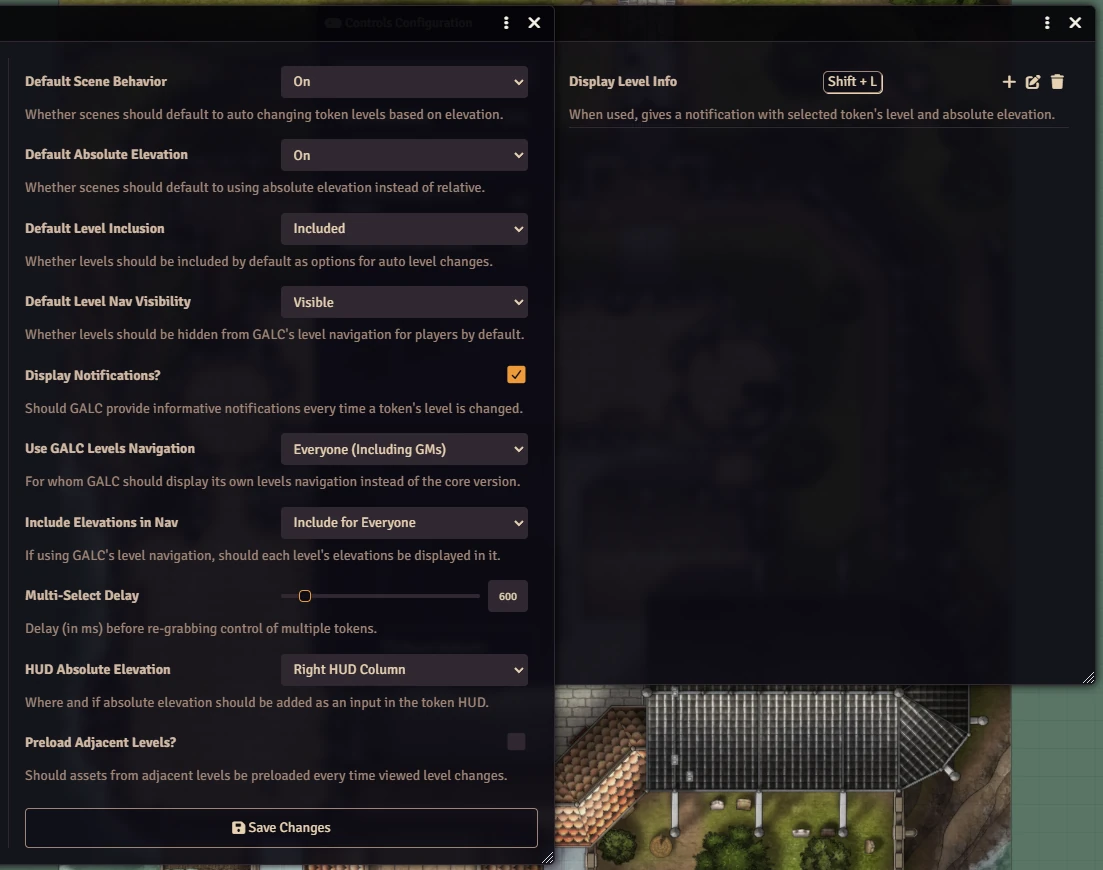
Game Settings
-
Default Scene Behavior: This determines what the "Default" option for the Auto Level Change scene setting does. Options are On or Off.
-
Default Absolute Elevation: This determines what the "Default" option for the Absolute Elevation scene setting does. Options are On or Off.
-
Default Level Inclusion: This determines what the "Default" option for the Level Change Inclusion level setting does. Options are Included or Excluded.
-
Default Level Nav Visibility: This determines what the "Default" option for the Level Nav Visibility level setting does. Options are Visible or Hidden.
-
Display Notifications? Boolean. This determines whether or not GALC will display an informative notification stating level and absolute elevation each time a token's level is changed. If checked on and you have multiple tokens selected when an automatic level change occurs, only one notification will display to prevent spam.
-
Use GALC Level Navigation: This determines whether GALC's level navigation will be used instead of core. Options are No One (Use Core), Players Only (GMs Use Core), and Everyone (Including GMs). This needs to be turned on for everyone to make use of GALC's other navigation options, including level nav names and displaying elevations in the nav. If you're concerned about players seeing levels they shouldn't when this is active, set Default Level Nav Visibility to Hidden.
-
Include Elevations in Nav: If you're using GALC's levels navigation, this determines if each level's elevation band will be added to the display. Options are No, Include for GMs Only, and Include for Everyone.
-
Multi-Select Delay: When a user's viewed level is changed, Foundry often drops control of tokens - either all tokens if you're a GM or all but one if you're a player. To combat this, GALC re-grabs control of tokens when it changes viewed level. This is seamless when GALC handles the view change, but Foundry handles this change in many cases for players. This delay is used to offset the re-grab in those cases. Numerical value. Default in 600 ms. If your players tend to have high load times, increase this as needed.
-
HUD Absolute Elevation: This handles if and where a field for displaying and changing absolute elevation should appear when you right-click a token. Options are Right HUD Column, Left HUD Column, Replace Relative Elevation, and Don't Add Absolute Elevation.
-
Preload Adjacent Levels? Boolean. This determines if GALC should preload the levels adjacent to your current viewed level whenever you load into a level. Adjacency is determined based on elevation values and group field (see Level Settings). This can help to make moving between levels more seamless, but how well it works depends on cache limits and level size.
Controls Configuration
- Display Level Info: When this hotkey is hit, an informative notification stating a selected token's level and absolute elevation is displayed. Particularly if you aren't using GALC's absolute elevation and levels nav options for players, this is highly useful for helping players figure out where their tokens are on a scene. Default is Shift + L.
Other Modules & Compatibility
- If you only need the level change function of this module, I highly recommend Dewi's Elevation Level Change as a potential alternative. The two modules use different methods for determining when and where to make level changes, so depending on your needs and likes, you may find one or the other suits you better if you don't need GALC's additional level-related options like absolute elevation display. Because GALC and ELC are trying to do the same task, it is not recommended you use both at once. Experiment with the two at your leisure and decide which you want to use.