Actor Image Gallery was created to make changing character portraits quick and natural during a game session. Each player can build and organize a gallery containing different portraits and appearances for their characters.
The goal is to support immersion and help players visually express what their character is going through in each scene. Instead of opening the Actor configuration and replacing the portrait manually, players can prepare their images in advance and switch between them while the scene continues.
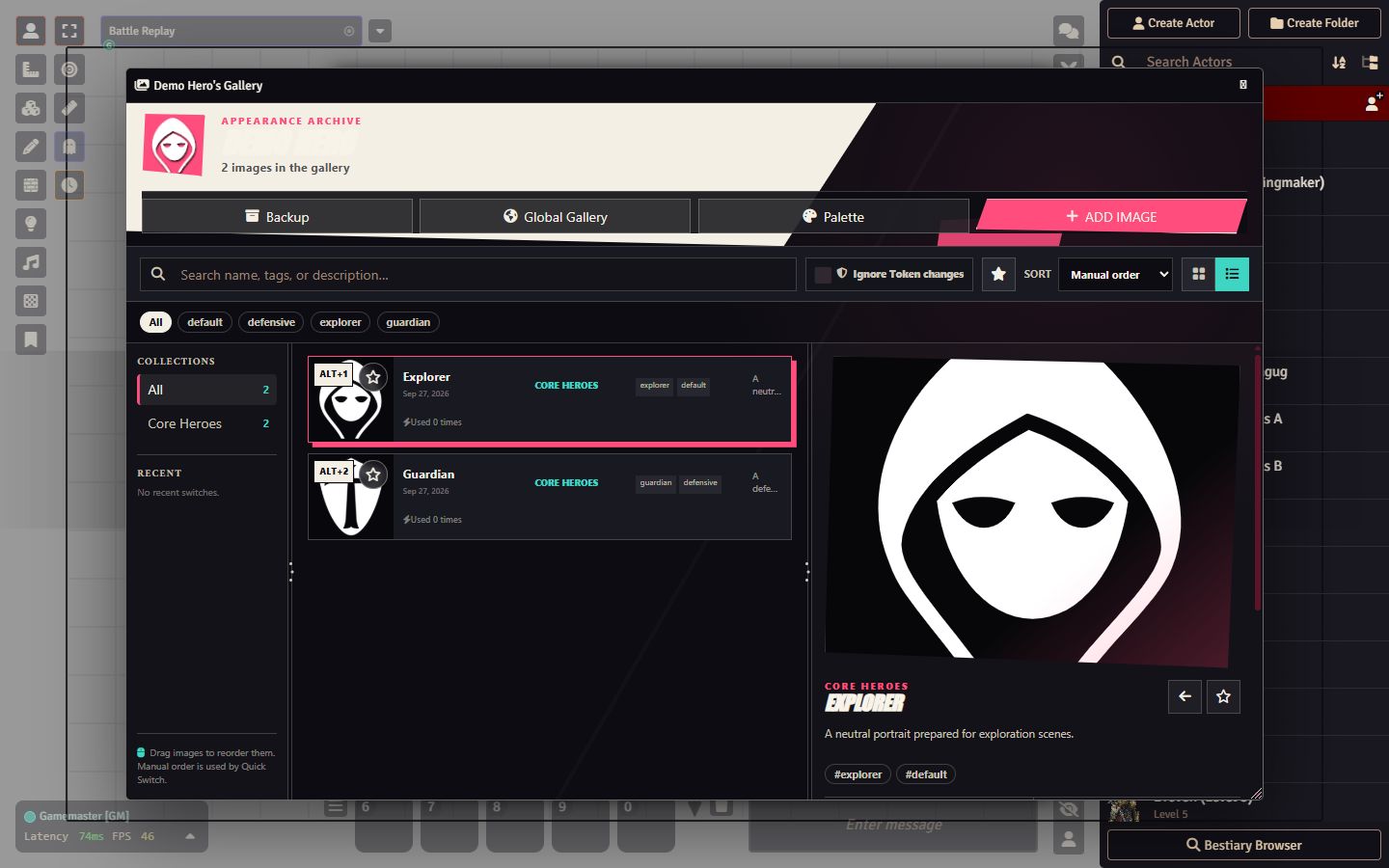
The gallery can be opened directly from the Actor sheet. From there, the user can add and organize appearances, adjust the framing of each image, choose whether it should affect the Actor portrait, the Token, or both, and use Quick Switch to change appearances without opening the full gallery.

Main Features
1. A Gallery for Each Actor
Every Actor can have an individual appearance gallery. Players can:
- Search images by name, tag, or description.
- Organize appearances into collections.
- Mark frequently used images as favorites.
- Quickly find recently used appearances.
- Switch between list and grid views.
- Reorder and organize images to match their preferred workflow.
To begin, open the Actor sheet and access Actor Image Gallery. Add the images you want to associate with that Actor, enter any useful names, tags, or descriptions, and organize them into collections when needed. Selecting an image opens its details and preview.
2. Non-Destructive Image Editor
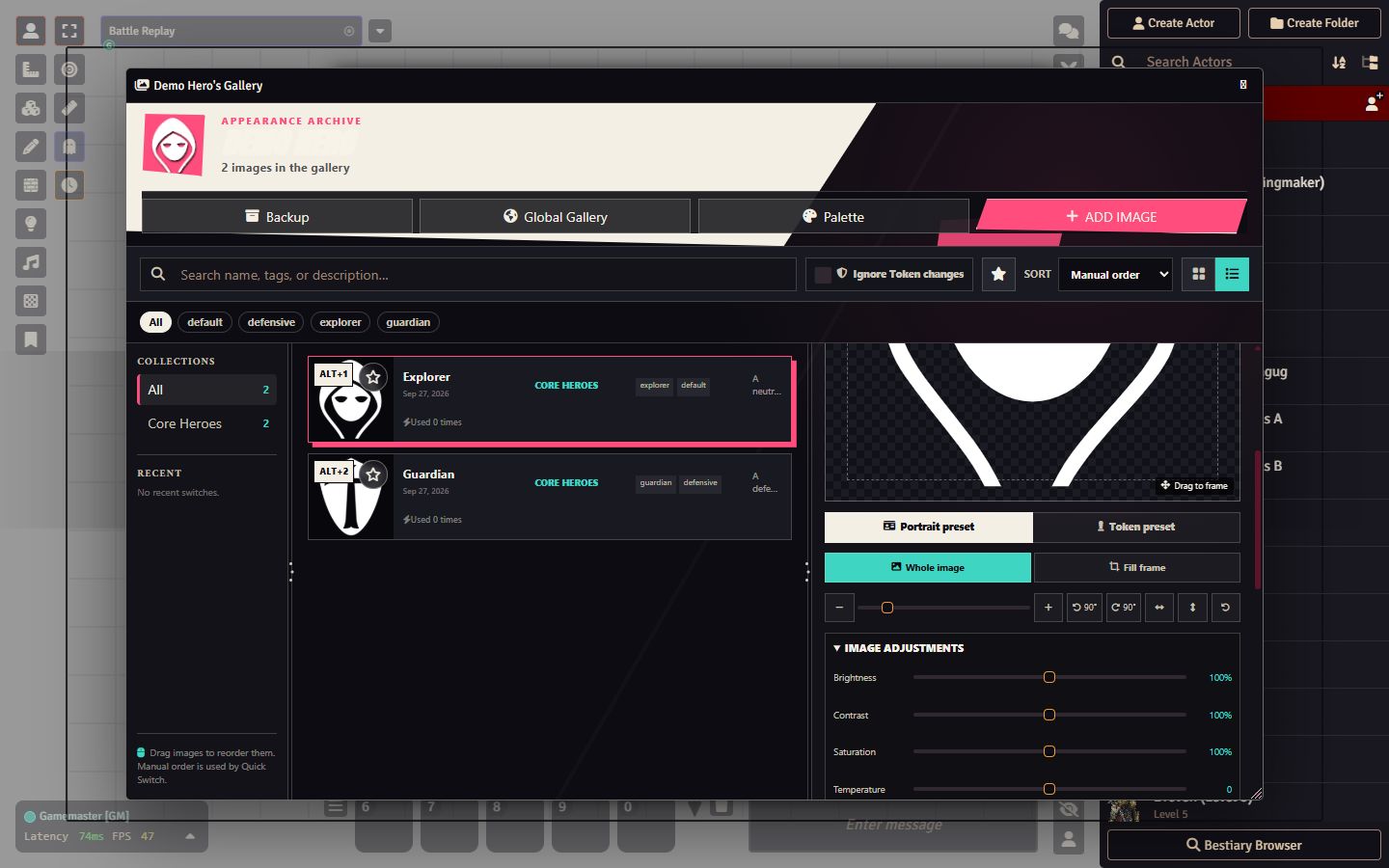
All editor adjustments are non-destructive: the original image file is never modified. The module stores the visual settings as metadata, and Portrait and Token presets are saved independently.
The editor includes:
- Fit Image, for displaying the entire image inside the available frame.
- Fill Frame, for filling the portrait or Token area.
- Zoom and image repositioning.
- Rotation and horizontal mirroring.
- Brightness, contrast, and saturation controls.
- Temperature and exposure adjustments.
- Shadow and highlight controls.
- Grayscale and blur effects.
This allows the same source image to use one framing for the Actor portrait and a different framing for the Token, without creating duplicate files.
3. Independent Portrait and Token Control
Each appearance can be configured to update the Actor portrait, the Token, or both. If a group wants to use the module only for portraits, Token changes can remain disabled and the existing Token artwork will stay untouched.
When preparing an appearance, choose where it should be applied:
- Portrait only changes the image shown on the Actor sheet.
- Token only changes the Token appearance while leaving the Actor portrait unchanged.
- Portrait and Token updates both when that appearance is selected.
The gallery also includes an option to ignore Token changes, providing a convenient safeguard for users who want to manage portraits without modifying Tokens.
4. Quick Switch
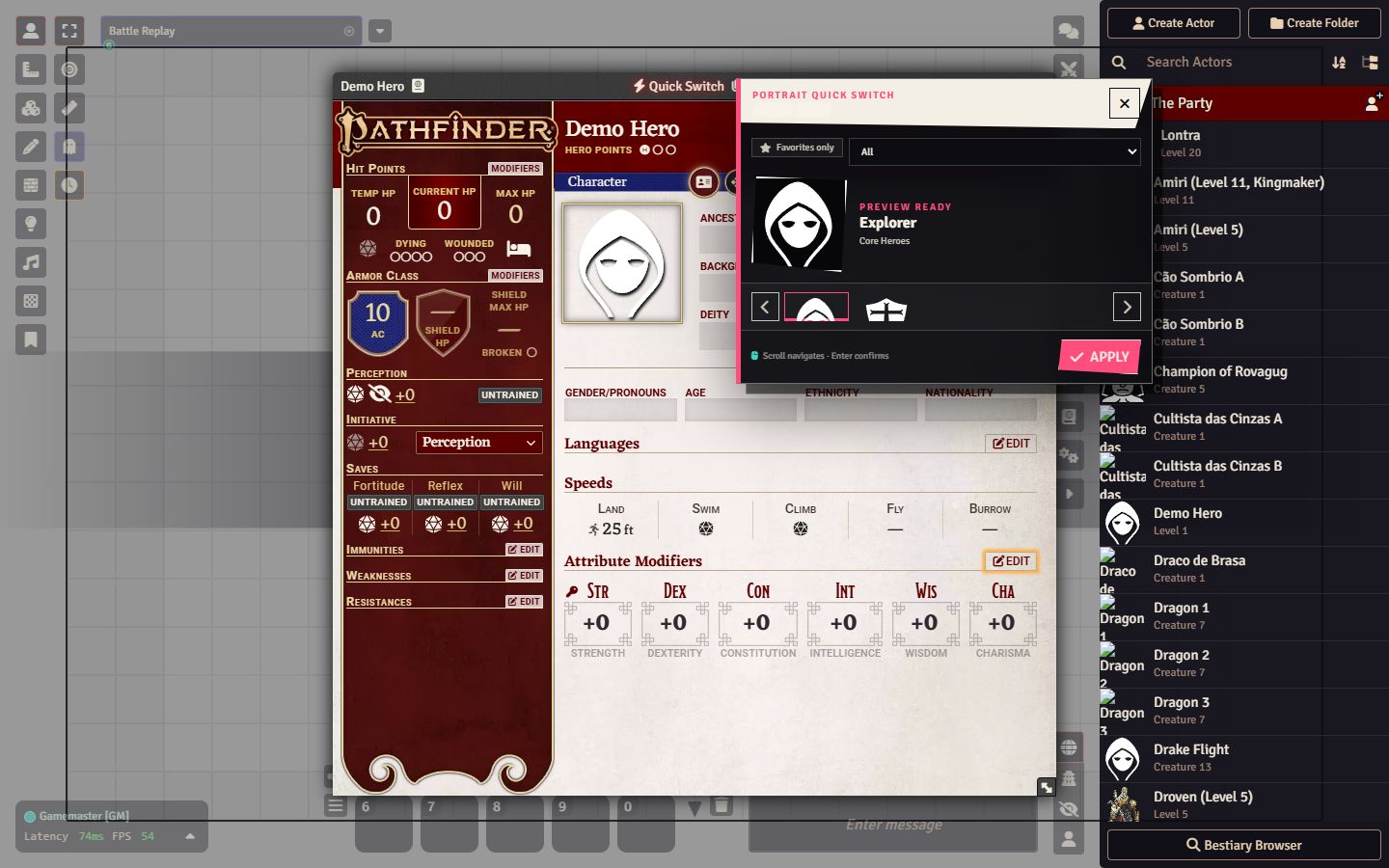
Quick Switch provides a faster way to change appearances without opening the complete gallery. It can be accessed from the Actor sheet by clicking the Actor portrait, where the module provides visual navigation between the available appearances and an option to filter favorites.
Quick Switch also supports:
- Configurable quick slots using Alt+1 through Alt+4.
- A configurable hotkey for opening Quick Switch.
- Visual navigation between prepared appearances.
- A favorites filter for keeping the most important options close at hand.
After assigning appearances to the quick slots, use the corresponding shortcut during play to apply them immediately. The Quick Switch hotkey can be changed in Foundry VTT's keybinding settings.
5. Global Gallery
The Global Gallery allows images to be reused across multiple Actor sheets. Its resources are managed by the GM, helping groups avoid registering or maintaining the same image more than once.
When an image should be available to several Actors, the GM can manage it through the Global Gallery instead of creating separate copies in every Actor gallery. This keeps shared resources organized while individual Actor galleries remain focused on each character.
6. Per-User Layout Customization
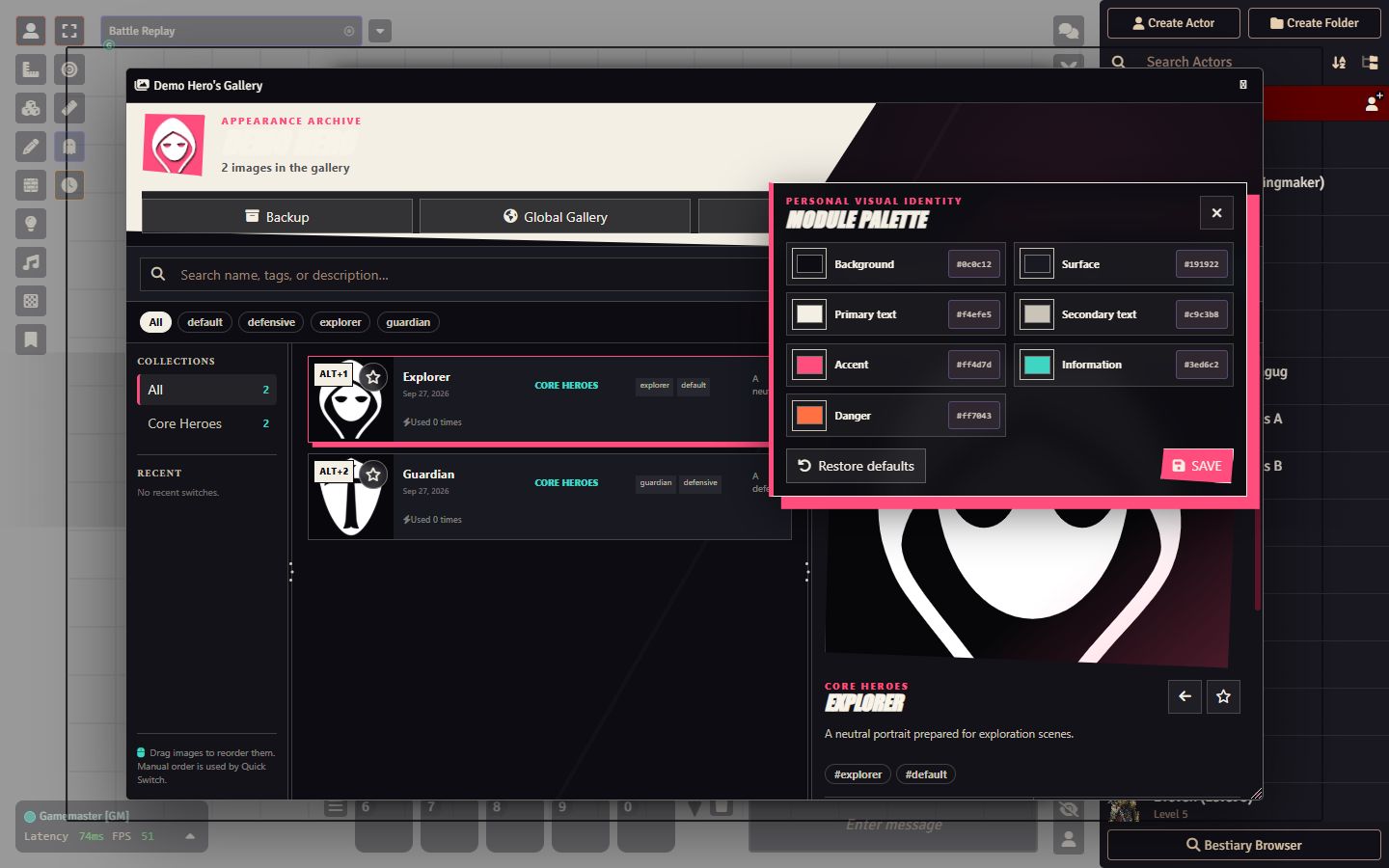
The gallery interface can be personalized independently by each user. This includes choosing a custom color palette, allowing players and GMs to adapt the module's appearance to their interface or accessibility preferences without changing another user's layout.
7. Backup and Portability
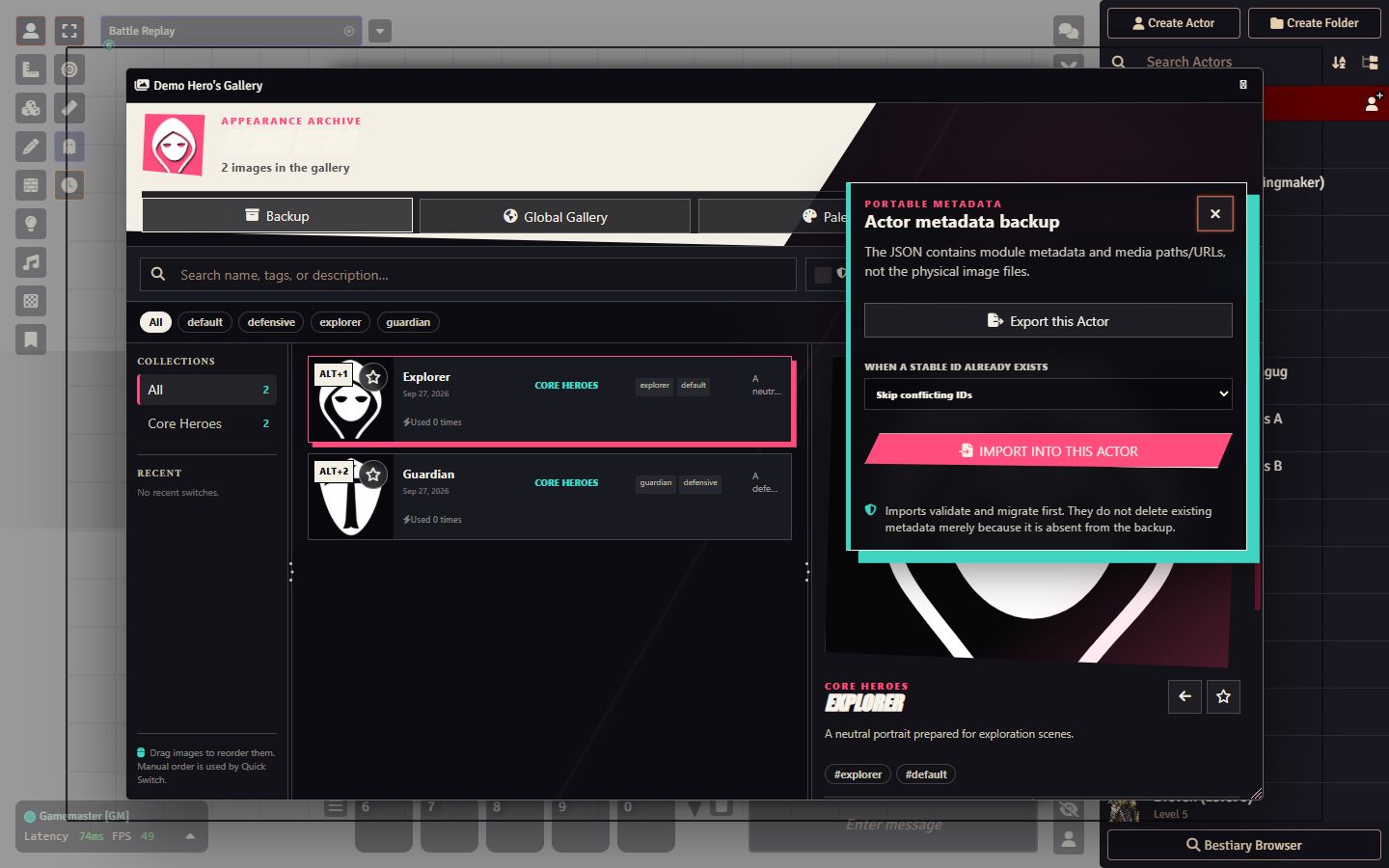
Gallery metadata can be exported and imported for use on another device or as a backup. This includes the organization and configuration information used by the module, as well as the stored image URLs.
The import and export tools include:
- Metadata backup and restoration.
- Exporting and importing gallery configuration for another installation or device.
- Options designed to prevent ID conflicts.
- Migration validation before imported data is applied.
- Preservation of stored image URLs and organizational metadata.
For a safer workflow, export a current backup before importing another data set. Review the migration validation result, choose the appropriate conflict-handling option, and only then confirm the import.
Basic Usage
1. Open an Actor sheet and access Actor Image Gallery.
2. Add the images or appearances that belong to that Actor.
3. Give each appearance a useful name and, when needed, add tags, a description, or a collection.
4. Open the image editor and configure the Portrait and Token presets independently.
5. Choose whether the appearance should update the Portrait, the Token, or both.
6. Mark important appearances as favorites or assign them to the Alt+1 through Alt+4 quick slots.
7. Apply an appearance from the gallery, click the portrait to use Quick Switch, or use one of the configured shortcuts during play.
8. Use the Global Gallery for images that need to be shared across multiple Actors.
9. Export the metadata periodically if you want a portable backup of the gallery configuration.