Updated August 20, 2026 (Version 14.367)
This page defines key terms used throughout the rest of the knowledge base within the context of Foundry VTT.
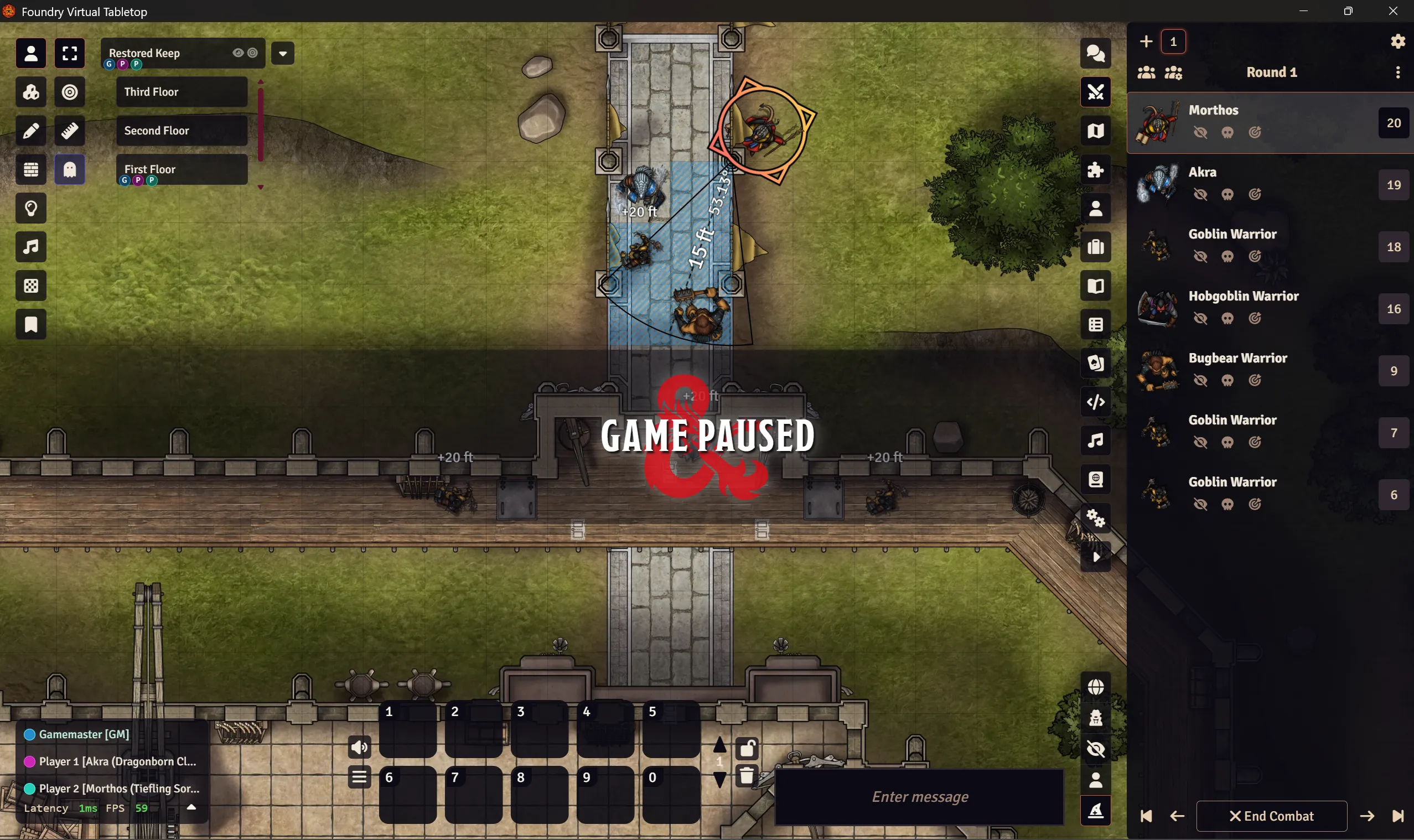
User Interface
These are the key parts of the core Foundry VTT user interface.
NOTE: Systems and Modules may adjust how these components display or add their own entirely new elements, such as the advanced Calendar system in Ember.
- Canvas
- The high-performance, graphical "game board" in the center of the screen. Your Scenes are all rendered inside it (and everything in them, like Tokens and Tiles).
- Hotbar
- The numbered button slots at the bottom of the screen for readily-accessible macros, as well as buttons to mute all sounds and open the main menu.
- HUD
- A "heads-up-display" of small, clickable buttons that appear around Placeables (such as Tokens) in the Canvas to help manage them.
- Pause
- While the game is paused, a large Pause banner displays in the center of the screen and players cannot modify anything on the Canvas. You can can toggle pause on and off with the spacebar. By default, Worlds launch paused.
- Placeables
- Anything that you can place into the canvas, like a Token or an Ambient Light, is a "placeable." Each type of Placeable has its own layer in the Canvas with its own Scene Controls that allow you to interact with that only that one kind of Placeable.
- Placeables Palette
- The Placeables Palette is a special Control that is available for most types of Placeables (except Tokens). It allows you to easily control how you create new placeables and to bulk edit existing ones.
- Players List
- The bottom-left display that includes information about the users connected to the world as well as some basic performance stats.
- Scene Controls
- The buttons on the far left of the screen. Each set is associated with a specific type of Placeable Document, such as Tokens or Regions. The Scene Controls are only active if you are currently viewing a scene.
- Scene Navigation
- The buttons at the top-left of the screen (immediately next to the Scene Controls) that manage viewed and active scenes and levels.
- Sidebar
- The collection of tabs on the right side of the screen that are mostly dedicated to managing collections of Documents. The Sidebar also includes the Settings tab to help manage your World and the Placeables sidebar tab to help manage the contents of the Canvas.
- Window
- A Window is the visual representation of an Application. They typically display inside Foundry VTT itself or in the same browser window, but as of Version 14 they can now also be detached or "popped out" to exist on their own.
Packages (Worlds, Systems and Modules)
To "run a game" on Foundry VTT, you will need a World, a System, and likely one or more optional Modules. These fundamental building blocks (Worlds, Systems, and Modules) are the three different types of "packages."
- Module
- A Package that provides additional content and/or modifies your game. A given World can have any number of Modules enabled, and those modules can be freely disabled (and re-enabled) at any time. Modules can be free or paid; A full list of modules can be found in the official package listing, and premium content modules can be found on the Foundry VTT Marketplace.
- Package
- "Package" is a general term for any World, System or Module. Packages are managed from the Setup screen, where each type of package has its own tab.
- System
- A Package that provides the basic logic for running a specific roleplaying game inside of Foundry. When a World is created a single system must be chosen and cannot be changed. Systems are generally free to install but their content is limited by the licensing terms of the publisher. A full list of systems can be found official package listing.
- World
- The concept of a "campaign" exists inside Foundry VTT as a special type of Package called a World. Most campaign data and progress is stored here, so it is important to back up your important Worlds regularly. You can make any number of Worlds from the setup screen, and each World must have a single System assigned to it.
Documents and Data
These terms relate to how Foundry VTT manages its underlying data.
- Application
- A specific window within Foundry VTT. Some applications are provided by the core software, while others are managed by Systems and Modules.
- Document
- A specific entity that is tracked by the server.
- Embedded Document
- A Document that is located inside of another Document, such as the Items inside of an Actor.
- ID
- A 16-character identifier unique for a document inside its collection.
- Placeable Document
- The Document for a Placeable that is visually represented on the Canvas at a specific location or area.
- Sheet
- A Sheet is a special kind of Application that allows users to view and edit a given type of Document. Foundry has default applications for almost all documents, with Actor and Item documents relying on their system to define sheets. Systems and Modules can provide alternative sheets for any Document type, which can be managed in settings.
- UUID
- The full data path of a document, specifying its location within Foundry. A UUID looks like
Compendium.dnd5e.equipment24.Item.phbwepLongsword0. You can acquire a Document's UUID by clicking the button in its sheet header, which will copy the UUID to your clipboard.
Document Types
These are all the Document types you may encounter while using Foundry VTT.
Placeable Document Types
These documents can be visually represented directly in the canvas. They each have their own set of Controls and a dedicated layer in the Canvas.
NOTE: Only GM users will see Controls for every Placeable type.
- Ambient Light ( )
- A Placeable Document that represents a light source on the Canvas.
- Ambient Sound ( )
- A Placeable Document that represents a sound source on the Canvas.
- Drawing ( )
- A Placeable Document that is a combination of text and simply drawn lines
- Measured Template (obsolete)
- A Placeable Document type removed in Foundry v14, these marked out shapes on the Canvas. Measured Templates have been fully replaced by Regions.
- Note ( )
- A Placeable Document type that provides a link to a Journal Entry from a specific spot on the Canvas.
- Region ( )
- A Placeable Document that marks out areas on the Canvas.
- Tile ( )
- A Placeable Document that represents an image or video on the Canvas.
- Token ( )
- A Placeable Document that represents an Actor on the Canvas. Tokens can be linked or unlinked; a linked token is kept fully synched with the base actor, while an unlinked token only uses the base actor as a blueprint and can diverge from there.
- Wall ( )
- A Placeable Document that represents a barrier blocking vision, movement, sound, and/or light.
Other Document Types
- Active Effect
- A Document responsible for applying temporary changes to an Actor or Token.
- Actor
- A Document that typically represents a character or NPC. Actors are represented on the Canvas by Tokens.
- Adventure
- A Document that only exists in Compendiums and is used to bundle other documents in a reusable format, preserving the relationships between the included Actors, Items, Scenes, Journals, etc.
- Card
- A Document representing a single playing card.
- Cards
- A Document that can be a deck, hand, or pile and have any number of embedded Card documents.
- Chat Message
- A Document that is a single entry in the chat log Sidebar tab.
- Combat
- A Document that manages rounds and turns.
- Combatant
- A Document that represents an individual participant of a Combat.
- Compendium
- A collection of documents that is associated with a specific package. Documents inside a compendium are not fully loaded with the rest of the world, only when specifically accessed, which helps with optimizing performance.
- Folder
- A Document that provides a simple graphical organizer in most Sidebar tabs.
- Item
- A Document that typically represents a distinct rules element, including not just equipment and gear but in many systems more abstract pieces like feats, talents, and classes.
- Journal Entry
- A Document that flexibly and generically stores information.
- Journal Entry Page
- A Document that is a specific entry in a Journal Entry. The core provided types include text, PDF, video, and image.
- Journal Entry Category
- A Document that provides a simple graphical organizer of Journal Entry Pages inside a Journal Entry.
- Level
- A Document that represents a single height range inside a scene.
- Macro
- A Document that contains a command to be run. Chat macros only create Chat Messages, while Script macros have full access to the Foundry API.
- Playlist
- A Document that manages audio tracks.
- Playlist Sound
- A Document that manages a specific audio file.
- Region Behavior
- A Document that provides automated logic to a Region.
- Roll Table
- A Document that enables randomized selection from a list of Table Results.
- Scene
- A Document that contains all the information to construct the Canvas.
- Setting
- A Document for managing the configuration of your Foundry VTT experience. Different settings have different scopes; some are for the whole World, while others are scoped to a per-user or per-device basis.
- Table Result
- A Document that is a specific entry in a Roll Table.
- User
- A Document that represents a single account for the World. Each World's users are separate from each other.